
User's Manual
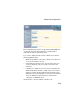
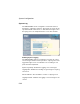
Table Of Contents
- Chapter 1 Introduction
- Chapter 2 Network Configuration
- Chapter 3 Hardware Installation
- Chapter 4 Initial Configuration
- Chapter 5 System Configuration
- Chapter 6 Command Line Interface
- Using the Command Line Interface
- Entering Commands
- Command Groups
- General Commands
- System Management Commands
- SNMP Commands
- Flash/File Commands
- RADIUS Client
- 802.1x Port Authentication
- Filtering Commands
- Interface Commands
- interface
- dns server
- ip address
- ip dhcp
- shutdown
- speed-duplex
- show interface ethernet
- radio-mode
- select-antenna-mode
- description
- ssid-broadcast
- closed-system
- speed
- channel
- ssid
- beacon-interval
- dtim-period
- fragmentation-length
- rts-threshold
- authentication
- encryption
- key
- transmit-key
- transmit-power
- max-association
- multicast-cipher
- wpa-clients
- wpa-mode
- wpa-preshared-key
- wpa-psk-type
- shutdown
- show interface wireless
- show station
- IAPP Commands
- VLAN Commands
- Appendix A Troubleshooting
- Appendix B Specifications
- Appendix C Cables and Pinouts
- Glossary
- Index

System Configuration
5-30
Firmware Upgrade Local – Downloads an operation code image
file from the web management station to the access point using
HTTP. Use the Browse button to locate the image file locally on
the management station and click Start Upgrade to proceed.
• New firmware file: Specifies the name of the code file on the
server. The new firmware file name should not contain slashes
(\ or /), the leading letter of the file name should not be a period
(.), and the maximum length for file names is 32 characters for
files on the access point. (Valid characters: A-Z, a-z, 0-9, “.”,
“-”, “_”)
• Firmware Upgrade Remote – Downloads an operation code
image file from a specified remote FTP or TFTP server. After
filling in the following fields, click Start Upgrade to proceed.
• New firmware file: Specifies the name of the code file on the
server.
The new firmware file name should not contain slashes
(\ or /),
the leading letter of the file name should not be a period
(.), and the maximum length for file names on the FTP/TFTP
server is 255 characters or 32 characters for files on the
access point. (Valid characters: A-Z, a-z, 0-9, “.”, “-”, “_”)
• IP Address: IP address or host name of FTP or TFTP server.
• Username: The user ID used for login on an FTP server.
• Password: The password used for login on an FTP server.
Restore Factory Settings – Click the Restore button to reset the
configuration settings for the SMC2552W-G to the factory
defaults and reboot the system. Note that all user configured
information will be lost. You will have to re-enter the default user
name (admin) to re-gain management access to this device.
Reset Access Point – Click the Reset button to reboot the system.
Note: If you have upgraded system software, then you must reboot the
SMC2552W-G to implement the new operation code.