
User Guide


97
ADOBE INCOPY CS2
User Guide
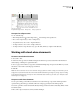
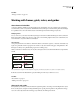
A B C
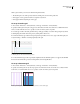
The story separator bar
A. Expand and collapse button B. Story name C. Story separator bar
To expand or collapse stories
Do one of the following:
• Click the Expand button or the Collapse button at the left edge of the separator bar.
• Choose View > Expand Story or View > Collapse Story.
• To expand all stories, choose View > Expand All Stories.
• To collapse all stories, choose View > Collapse All Stories.
• To collapse all stories except the active story, press Alt+click (Windows) or Option+click (Mac OS).
Working with stand-alone documents
To create a stand-alone document
1 Choose File > New.
2 Under Text Area, type values for Width and Depth. Text dimensions provide accurate line-break information
without relying on InDesign for copyfit information.
3 Choose a page size from the list, or type values for Width and Height. Page size represents the final size you want
after bleeds or other marks outside the page are trimmed.
4 Click OK.
Note: You can also click Save Preset to save document settings for future use. When creating a new document, you can
simply choose it from the Document Preset menu and click OK without having to change any settings. If you’re working
in an editorial workgroup, these saved presets can be shared with other members of your team. (See “To define custom
document presets” on page 98.)
To open a stand-alone document
You can open an InCopy content file (.incx) that has been created in InCopy or exported from InDesign. When
opened in InCopy, these InCopy content files will not show the page geometry from the InDesign layout.
You can also open Microsoft Word and text files directly in InCopy, and then save them as Text Only (.TEXT) or Rich
Text Format (.RTF).
❖ Choose File > Open. Select the document, and then click Open.