
User Guide


101
ADOBE INCOPY CS2
User Guide
See also
“File type overview” on page 100
Working with frames, grids, rulers, and guides
About frames in linked files
As in Adobe InDesign, all InCopy text and graphics appear inside frames. You can see frames in an open InCopy
document when you choose Layout view. For linked documents, InDesign controls the frame placement and design
for a publication. You can see the frame structure of the InDesign document in InCopy Layout view.
Modifying frames
You (or someone on your team) must make any changes to frames from within the InDesign document, unless the
frames are for inline graphics. You can move, scale, rotate, or sheer inline graphics frames, but not other frames. For
more information, see your workflow documentation.
Threading text
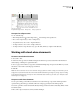
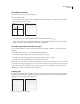
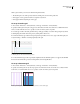
A long story can flow from one frame to other frames that are connected in sequence, or threaded. Athreadedstory
begins on a particular column of a page and can continue on any other columns and pages of the publication. The
InDesign user always sets up the threading sequence for an InCopy story.
When you add text to a threaded story, the story flows through each successive frame until all of the assigned frames
are full.
1 Light
2
3
1 2
3
Water
Topsoil
Light n atural
or electric
Water
Topsoil
Flow of threaded text: Original text in threaded frames (top); after you add text to first frame, text reflows to second frame (bottom)
If the text doesn’t fit in its allotted frame space, the hidden part of the story is called overset text.
See also
“About frames” on page 23
“Editing overset text” on page 178
About grids and guides
In Layout view, you can view (or hide) a framework of grids and guides to show the position and alignment of objects.
In most work systems, a designer working with InDesign sets up the grids and guides for the publication. InCopy
users can see these layout aids after an InCopy story is linked to the InDesign document.