
User Guide


104
ADOBE INCOPY CS2
User Guide
To modify the zero point
You can move, reset, lock, or unlock the zero point.
❖ Do one of the following:
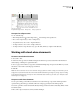
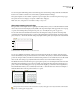
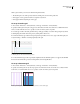
• To move the zero point, drag from the horizontal and vertical rulers intersection to the position on the layout
where you want to set the zero point.
Establishing zero point
• To reset the zero point, double-click the horizontal and vertical rulers intersection .
• To lock or unlock the zero point, right-click (Windows) or Control-click (Mac OS) the zero point of the rulers,
and choose Lock Zero Point or Unlock Zero Point in the context menu.
To set the scope of the horizontal ruler origin
1 Choose Edit > Preferences > Units & Increments (Windows) or InCopy > Preferences > Units & Increments
(Mac OS).
2 In the Ruler Units section, do one of the following in the Origin menu:
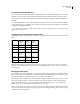
• To set the ruler origin at the top left corner of each spread, choose Spread.
• To set the ruler origin at the top left corner of each page in each spread, choose Page.
• To set the ruler origin at the binding spine of each spread, choose Spine.
Note: If you set the ruler origin at each spread’s binding spine, the origin becomes locked at the spine. You won’t be able
to reposition the ruler origin by dragging it from the intersection of the rulers unless you choose another origin option.
You can also change horizontal ruler origin settings using the context menu that appears when you right-click
(Windows) or Control-click (Mac OS) the horizontal ruler.
Creating grids
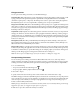
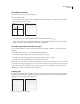
Two kinds of nonprinting grids are available: a baseline grid for aligning columns of text, and a document grid for
aligning objects. On the screen, a baseline grid resembles ruled notebook paper, and a document grid resembles
graph paper. You can customize both kinds of grids.
Baseline grid (left) and document grid (right)