
User Guide

106
ADOBE INCOPY CS2
User Guide
To show or hide the grids
• To show or hide the baseline grid, choose View > Grids & Guides > Show Baseline Grid or View > Hide Baseline
Grid.
• To show or hide the document grid, choose View > Grids & Guides > Show Document Grid or View > Hide
Document Grid.
To show or hide ruler guides
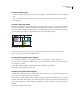
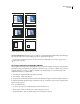
Ruler guides are different from grids in that they can be positioned freely on a page or on a pasteboard. InDesign
users can create two kinds of ruler guides: page guides, which appear only on the page on which they create them, or
spread guides, which span all pages and the pasteboard of a multiple-page spread. You can view ruler guides if they
exist in the InDesign document or assignment file, but you cannot create them in InCopy.
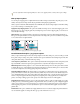
A B
Guides
A. Spread guide B. Page guide
1 Make sure that you are in Layout view; if necessary, click the Layout view tab at the top of the edit pane.
2 Choose View > Grids & Guides > Show/Hide Guides.
To customize the pasteboard and guides
1 In the Edit menu (Windows) or InCopy menu (Mac OS), choose Preferences > Guides & Pasteboard.
2 To change the color of margins or columns, choose a preset color from a menu, or choose Custom and specify a
color using the color picker.
3 To make the pasteboard bigger or smaller, enter a value for Minimum Vertical Offset.
4 Click OK to close the Preferences dialog box.
To display ruler guides behind objects
By default, ruler guides appear in front of all other guides and objects. However, some ruler guides may block your
view of objects, such as lines with narrow stroke widths.
You can change the Guides in Back preference to display ruler guides in front of or behind all other objects. However,
regardless of the Guides in Back setting, objects and ruler guides are always in front of margin and column guides.
1 Choose Edit > Preferences > Guides & Pasteboard (Windows) or InCopy > Preferences > Guides & Pasteboard
(Mac OS).
2 Select Guides in Back, and click OK.