
User Guide

107
ADOBE INCOPY CS2
User Guide
Using layers
About layers
Layers are like transparent sheets stacked on top of each other. If a layer doesn’t have objects on it, you can see
through it to any objects on layers behind it.
Only InDesign users can create layers. Each InDesign document includes at least one named layer. If multiple layers
were used, you can edit specific areas or kinds of content in your document without affecting other areas or kinds of
content. For example, if your document prints slowly because it contains many large graphics, you can hide all non-
text layers and quickly print the text layer for proofreading.
Additional layer notes:
• Objectsonmasters appear at thebottomofeachlayer.Masterobjects canappearinfront of document page objects
if the master page objects are on a higher layer.
• Layers involve all pages of a document, including masters. For example, if you hide Layer 1 while editing page 1
of your document, the layer is hidden on all pages until you decide to show it again.
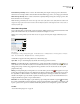
The Layers palette lists layers with the frontmost layer appearing at the top of the palette.
To show and hide layers
1 Choose window > Layers.
2 In the Layers palette, do one of the following:
• To hide a specific layer, click the eye icon to the left of the layer name.
• To show a specific layer, click the space to the left of the layer name.
• To show or hide all layers at once, choose Show/Hide All Layers from the palette menu.
Note: Only visible layers print.