
User Guide

109
ADOBE INCOPY CS2
User Guide
4 If another dialog box appears, select your import options, and click OK.
5 Do one of the following:
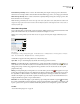
• To import into a frame, click the loaded graphics icon in the frame.
If you accidently replace an existing graphic with an image you’re placing, press Ctrl+Z (Windows) or Command+Z
(Mac OS) to return the original image to the frame and display the loaded graphics icon.
• To place a specified page of a multipage PDF document, click the loaded graphics icon in a frame.
To drag a graphic into a frame
❖ Do one of the following:
• To place a graphic in an existing graphics frame, make sure the frame is checked out to you, and then drag the
graphic file’s icon from the file system to the frame.
• To placeagraphicatanactivetextinsertion point, dragthe graphicfile’sicontoany placeinthe text frame. This
method is available only in Layout view.
To paste a graphic into a frame
1 Make sure the graphics frames are checked out to you. The Editing icon appears in the upper left corner of the
frame.
2 Cut or copy a graphic.
3 Hold the Hand tool over the graphics frame, right-click (Windows) or Command-click (Mac OS), and then
choose Paste Into.
To create an inline graphic
1 Make sure the text frame is checked out to you. The Editing icon appears in the upper left corner of the frame.
2 Do one of the following:
• To place a graphic in an existing inline graphics frame, use the Place or Cut command to select a graphic. Click
the loaded graphics icon in the frame.
• To place a graphic at an active text insertion point, drag the graphic file’s icon to any place in the text frame.
To fit a graphic to its frame
When youplace or pasteagraphicintoaframe, it appearsatthe upperleftcornerofthe framebydefault.Ifthe frame
and its content are different sizes, you can use the Fitting commands to achieve a perfect fit.
You can also use keyboard shortcuts to nudge the graphic within its frame. (See “Keys for moving and transforming
graphics” on page 284.)
1 Select the graphic with the Position tool
2 Choose Object > Fitting and one of the following options:
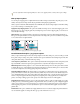
Fit Content to Frame Resizes content to fit a frame and allows the content proportions to be changed. The frame
.
will not change, but the content may appear to be stretched if the content and the frame have different proportions.
Center Content Centers content within a frame. The proportions of the frame and its content are preserved.