
User Guide

113
ADOBE INCOPY CS2
User Guide
For more information about importing EPS files or other vector graphic formats, search for those topics in Help.
Bitmap import options
You can import a clipping path or an alpha channel saved with an image created in Photoshop. This gives you the
ability to directly select an image and modify its path without changing the graphic frame.
When you place a PCX, PSD, TIFF, GIF, JPEG, SCT, or BMP file, and select Show Import Options in the Place dialog
box, you’ll see a dialog box containing these options:
Apply Photoshop Clipping Path If this option isn’t available, the image was not saved with a clipping path, or the
file format does not support clipping paths. If your bitmap image does not have a clipping path, you can create one
automatically in InDesign.
Alpha channel Select an alpha channel to import the area of the image saved as an alpha channel in Photoshop.
InCopy uses the alpha channel to create a transparent mask on the image. This option is not available for images that
do not contain at least one alpha channel.
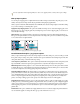
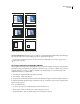
Image imported without clipping path (left) and with clipping path (right)
Portable Network Graphics (.png) import options
When youplace aPNG imageand select Show Import Optionsinthe Placedialogbox,you’llsee adialogbox with
three panels of import settings. Two panels contain the same options available for other bitmap image formats. The
other panel, PNG Settings, contains the following settings:
Use Transparency Information This option is enabled by default when a PNG graphic includes transparency. If an
imported PNG file contains transparency, the graphic interacts only where the background is transparent.
White Background If a PNG graphic does not contain a file-defined background color, this option will be selected
by default. However, it is only enabled if Use Transparency Information is activated. If this option is selected, white
is used as the background color when applying transparency information.
File Defined Background Color If a PNG graphic was saved with a non-white background color, and Use Trans-
parency Information is selected, this option is selected by default. If you don’t want to use the default background
color, click White Background to import the graphic with a white background, or deselect Use Transparency Infor-
mation to import the graphic without any transparency (displaying areas of the graphic that are currently trans-
parent). Some image-editing programs can’t specify a non-white background color for PNG graphics.
Apply Gamma Correction Select this option to adjust the gamma (midtone) values of a PNG graphic as you place
it. This option lets you match image gamma to the gamma of the device you will use to print or display the graphic
(such as a low-resolution or non-PostScript printer or computer monitor). Deselect this option to place the image
without applying any gamma correction. By default, this option is selected if the PNG graphic was saved with a
gamma value.
Gamma Value This option, available only if Apply Gamma Correction is selected, displays the gamma value that
was saved with the graphic. To change the value, type a positive number from 0.01 to 3.0.