
User Guide

115
ADOBE INCOPY CS2
User Guide
A B
C D
E F
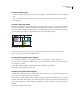
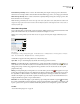
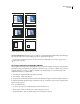
Options for cropping placed PDF files
A. Media B. Content C. Bleed D. Trim E. Crop F. Art
Transparent Background Select this option to reveal text or graphics that fall beneath the PDF page in the InCopy
layout. Deselect this option to place the PDF page with an opaque white background.
If you make the background transparent in a frame containing a PDF graphic, you can make it opaque later by
adding a fill to the frame.
To set layer visibility for placed PSD or PDF files
After you place a Photoshop PSD or layered PDF file, you can control the visibility of its layers by using the Object
Layer Options dialog box. If the Photoshop PSD file contains layer comps, you can choose which comp you want to
display. In addition, you can choose whether to maintain your visibility settings or to match the settings of the
original file each time you update the link.
1 Select the PSD or layered PDF file in the InCopy document.
2 Choose Object > Object Layer Options.
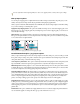
3 To view a preview of the image, click Show Preview in the Object Layer Options or PDF Layer Options dialog box.
4 (Photoshop PSD files only) If the image contains layer comps, choose the layer comp you want to display from the
Layer Comp pop-up menu.
5 Do one of the following:
• To open or close a layer set, click the triangle to the left of the folder icon.
• To hide a layer or layer set, click the eye icon next to the layer or layer set.
• To display the layer or layer set, click the empty box next to the layer or layer set.