
User Guide


116
ADOBE INCOPY CS2
User Guide
• To display only the content of a particular layer or layer set, Alt-click (Windows) or Option-click (Mac OS) its eye
icon. Alt-click (Windows) or Option-click (Mac OS) the eye icon again to restore the original visibility settings of
the other layers.
• To change the visibility of multiple items, drag through the boxes next to the layers.
6 Set the When Updating Link option as desired:
Use Photoshop’s Layer Visibility Matches the layer visibility settings to those of the linked file when you update the
link.
Keep Layer Visibility Overrides Maintains the layer visibility settings as specified in the InCopy Document.
7 Click OK.
Transforming graphics
About the Position tool
Use the Position tool to manipulate selected graphics, either directly, in conjunction with a Transform command
(Object > Transform) or a command on a context menu, or by using keyboard shortcuts to nudge the graphic within
its frame.
The Position tool is dynamic, automatically changing to reflect different states:
• When placed directly over an empty graphics frame or frame with unassigned content after using the File > Place
command, it changes to the loaded graphics icon to indicate that you can import the graphic into that frame.
• When it’s placed directly over a graphic, it changes to the Hand tool to indicate that you can select the graphic and
manipulate it within the frame.
• When placed over the bounding box handle of an inline graphic, it changes to the resize arrow to indicate that
dragging will resize the graphic.
• When placed over a graphics frame or the top-level container of nested frames, it changes to the object select
icon
to indicate that you can select the graphic or nested frame under the pointer. You cannot select the frame
itself.
• When placed over a text frame, it changes to the I-beam to indicate a text insertion point.
To set Position tool options
When using the Position tool to move a graphic, you can hold down the mouse button for a few seconds to display
a dynamic graphics preview (a ghosted-back image) of any part of the image that is outside of the frame. You can
control the display and delay of the preview.
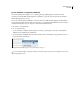
1 Double-click the Position tool in the toolbox.
2 From the Show Masked Portion of Image menu, select the rate at which the entire image will appear while
dragging, or select to turn it off entirely.