
User Guide

ADOBE INCOPY CS2
User Guide
132
All Graphics Exports every graphic that has not been exported already.
All Graphics and Stories Exports every story and graphic that has not been exported already.
If you export all content in the document, and then add more text or graphics frames to the same document, you can
save time exporting the new ones by using the Export > All Stories command again. InDesign exports only the new
content.
4 Enter a name and location for the files, and then click Save.
Note: The file name you specify is used as a prefix for identifying each exported content file in the file system. If you
export multiple text frames, the first several characters of the text are automatically appended to the file name; for
example, “mystory.Upcoming cycling events.incx.” For multiple graphics frames, the file names are formed as “mystory-
graphic,” mystory-graphic-1,” and so on. The file name appears in the file system, in the InCopy story bar, and in status
messages.
5 When prompted, click OK to save the content as managed InCopy files, in the InCopy Interchange Format (.incx).
Also when prompted, save your InDesign file.
The InCopy content is now managed, and is available to be checked out and edited by other users in the workflow.
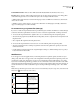
When you export content, you see the Available icon on the text frame (InDesign and InCopy), and in the
Assignments palette (InCopy). The word [Available] appears in the story bar (InCopy).
To export stories for use in InCopy CS (InDesign)
To open an InCopy CS2 document in InCopy CS, you must save the document to the InCopy CS Story format (.incd),
the file format used by the InCopy CS application. Be aware that stories created using functionality specific to InCopy
CS2, might be modified or omitted when you open the file in InCopy CS. For example, footnotes (a new feature in
InCopy CS2), will drop out.
1 In InDesign, do either of the following:
• Select the text frame of a single story, or Shift-click to select multiple frames.
• Click an insertion point in a story, or select some text in a text frame.
2 Choose Edit > InCopy > Export, and then choose one of the following options:
• Choose Selection to export all selected text frames.
• Choose All Stories to export every story that has not been exported already.
If you export all content in the document, and then add more text or graphics frames to the same document, you can
save time exporting the new ones by using the Export > All Stories command again. InDesign exports only the new
content.
3 Enter a location and name for the files, and click Save.
4 Select options in the Adobe InCopy Export Options dialog box as desired, and click OK.
5 When prompted, click OK to save the stories as managed InCopy files, in the InCopy CS Story format (.incd). Also
when prompted, save your InDesign file.
The InCopy story is now managed, and is available to be checked out and edited by other users in the workflow.
InCopy export options
Include Style Table Embeds character and paragraph styles into a story.
Include Swatch List Embeds swatches into a story.