
User Guide

134
ADOBE INCOPY CS2
User Guide
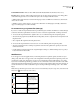
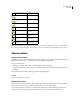
Icon Name Location
Available and Out of Date Text and graphics frames
In Use by name and Out
of Date
Text and graphics frames
Editing and Out of Date Text and graphics frames
Out of Date Assignments palette
Text Content Out of Date Assignments palette and
text frames
Text Content Up to Date Assignments palette and
text frames
Graphics Content Out of
Date
Assignments palette and
graphics frames
Graphics Content Up to
Date
Assignments palette and
graphics frames
Note: The Out of Date icon on the Available, In Use, Editing, Text Content, and Graphics Content icons indicates that
the content is out of date; that is, the version on the file system is newer than the version displayed on your computer.
Shared content
To open shared content
Only InCopy users can open assignment files (.inca). If an InCopy user opens an InDesign file that contains assign-
ments, the user will have access to all the managed content, regardless of assignments.
❖ Do one of the following.
• In InCopy, choose File > Open, select an assignment file (.inca), and click Open.
• In InDesign or InCopy, choose File > Open, select an InDesign file (.indd) that contains assigned content, and
click Open.
The assignment names and their contents appear in the Assignments palette.
See also
“About assignment files” on page 128
Checking out content
When you check out an item, a hidden lock file (.idlk) is placed on the file system. Once the content is checked out,
you have exclusive control over its content, and others are locked out from making changes.
You can check out InCopy content only; you cannot check out InDesign documents with layout information. If
attempt to check out a content file that you currently have open, you are prompted to update the content.