
User Guide

135
ADOBE INCOPY CS2
User Guide
If you attempt to close an InDesign document containing one or more InCopy content files that are checked out to
you, an alert message appears, prompting you to check in all content. If you close the document without checking in
the content files, they will still be checked out to you the next time you open the InDesign document. Saving the
InDesign document automatically saves every editable InCopy content file.
See also
“About read-only files” on page 126
To check out content (InDesign)
❖ Do one of the following:
• In the layout, select the text or graphics frames to edit and choose Edit > InCopy > Check Out.
• In the Assignments palette, select the files and choose Check Out from the palette menu.
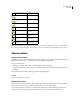
When you check out available content in InDesign, you see the Editing icon
on the InDesign frame. In InCopy,
the In Use icon
appears on the InCopy frame, and in the Assignments palette.
To check out content (InCopy)
1 Do one of the following:
• If the content you want is part of an assignment, choose File > Open and select the assignment file (.inca).
• If the content you want was exported as individual files, choose File > Open and select the InCopy file (.incx). To
see the layout so you can do copyfitting, also open the InDesign document.
2 Do one of the following:
• To check out a single InCopy content file, choose File > Check Out.
• To check out all content in an assignment at once, select the assignment in the Assignments palette, and choose
Check Out from the palette menu.
• To check out individual items in an assignment, open the assignments list in the Assignments palette, select an
item or multiple items, and choose Check Out from the palette menu. The Editing icon
appears next to the
item or items in the Assignments palette, indicating that the content is checked out to you for your exclusive use.
3 If prompted to update the content with changes, click OK.
When you check out available content in InCopy, you see the Editing icon
on the InCopy frame, and in the
Assignments palette. In InDesign, the In Use icon
appears on the InDesign frame.
Best practices for working with managed files
Use the following practices to make sure that you are working with the most up-to-date content and not overwriting
someone else’s work:
• Use folder hierarchies to organize assignment and content files. This will simplify managing the shared files across
a workgroup, and help ensure that users open the correct files. As an example, create an Assignments folder that
contains assignment files (.inca extension) for the users in your workgroup. Within the Assignments folder, create
a Contents folder where you can save the content files (incx extension).
• In InCopy, open the assignment file instead of an individual InCopy story. That way, you can see the copyfit and
layout information in Galley and Layout views. If you have exported content without using assignment files, you
can see copyfit and layout information only by opening the InDesign file.