
User Guide


136
ADOBE INCOPY CS2
User Guide
• As soon as you open an assignment file, open an InDesign document, or check out content in either InDesign or
InCopy, make sure frame edges are showing (View > Show Frame Edges) so that you can see the frame icons when
they appear.
• In InDesign, if you must remove files from the workflow, (because of a production deadline, for example), you can
unlink them. However, you should avoid unlinking files when they are checked out by someone else in the
workgroup, as this will leave a lock file on the disk. A lock file will prevent someone from editing the file in the
future. Unlinking your own checked-out files deletes the lock file, so you can edit it again.
• In InDesign, if you unlink someone else’s managed file and you need to re-export it to the workflow, give it a
different name when you export it. This will ensure that the old lock file on disk won’t prevent users from editing
the file.
See also
“To unlink content files (InDesign)” on page 142
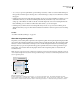
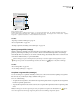
About the Assignments palette
The primary tool for working with assignments is the Assignments palette. The Assignments palette displays the files
exported from the currently active InDesign document, and an icon indicates their status. The Assignments palette
menu also contains commands that control import version and file-management functions between InCopy and
InDesign. When you open an assignment in InCopy, the assignment name and its contents appear in the Assign-
ments palette. You can double-click text and graphics frames in the Assignments palette to select them in the
document window.
Note: Allcontent exportedtoInCopyoraddedtoanassignmentisalsolistedinthe Linkspalette.Althoughyou cando
some workflow management tasks, such as checking out and checking in content, the recommended palette for these tasks
is the Assignments palette.
B
C
A
D
E
F
G
H I J K
InDesign Assignments palette
A. InCopy content names B. InDesign document name C. Assignment Out of Date status D. Available and Graphic Up to Date
status E. In Useand Text OutofDatestatus F. Editing and Text Up to Date status G. Unassigned content H. User name I. Update
Content button J. Check Out/Check In Selection button K. New Assignment button L. Delete Selected Assignments/Remove button