
User Guide


137
ADOBE INCOPY CS2
User Guide
B
C
A
D
E
F
G
H I J K
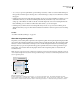
InCopy Assignments palette
A. InCopy content names B. InDesign document name C. Assignment Out of Date status D. Available and Graphic Up to Date
status E. In Use and Text Out of Date status F. Editing and Text Up to Date status G. Unassigned content H. User name I. Update
Design button J. Update Content button K. Check Out/Check In Selection button
See also
“Exporting content from InDesign” on page 127
“About assignment files” on page 128
“Creating assignments and adding content (InDesign)” on page 128
Opening managed files (InCopy)
Opening a managed content file (.incx) directly in InCopy and working with it in Story view may be more appro-
priate for quick writing and editing. You do not have to check out an individual managed file to edit it; InCopy
automatically checks it out. When you save and close the file, InCopy automatically checks in the content. The Save
commands are different when you open individual files.
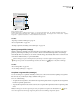
InDesign user opens the associated InDesign document, the In Use icon
When an InCopy user opens a managed content file directly, no visual cue appears in InCopy. However, if an
appears on the frame in InDesign.
See also
“About managed files” on page 124
“To save changes (InDesign)” on page 139
To update assignment files (InDesign)
You can save changes to assignments manually or when you close the current document. Updating an assignment
file is the only way to make layout changes available to InCopy users.
❖ Do one of the following:
• To update selected assignments, select them in the Assignments palette and choose Update Selected Assignments
from the Assignments palette menu.
• To update all assignments in the current document, choose Update All Assignments from the Assignments palette
menu.
Note: If an InCopy user has an assignment open when you update the assignment, the Out Of Date icon appears
next to the assignment in the InCopy Assignments palette, but not the InDesign Assignments palette.