
User Guide


138
ADOBE INCOPY CS2
User Guide
See also
“Updating content” on page 140
To remove content from assignments (InDesign)
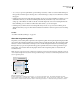
❖ In the Assignments palette, select content items in an assignment list and choose Remove From Assignment in the
palette menu.
This action moves the selected items to the Unassigned InCopy Content section in the Assignments palette, but does
not unlink them from the managed workflow.
To delete assignments and their contents (InDesign)
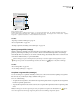
❖ In the Assignments palette, select one or more assignments and choose Delete Assignment in the palette menu.
Deleting assignments accomplishes the following:
• Removes the assignment data from the document.
• Deletes the assignment file from the file system.
• Removes the assignment name from the list.
• Moves any InCopy content to the Unassigned InCopy Content section in the Assignments palette.
Note: If an InCopy user has an assignment open when it is deleted in InDesign, an alert notifies the InCopy user that the
assignment has been deleted. However, the content files are not deleted and can be updated without loss of changes.
Wrapping up your work session
Checking in content
When youcheck in amanaged contentfile, yousaveittoashared location on afilesystemwhere it canbechecked
out by others for editing or other changes. Exporting a text or graphics frame from InDesign also checks it in
automatically.
Although a checked-in file is available for editing, it is not actually editable until it is checked out (unless you edit the
content in stand-alone mode in InCopy). Checking in content relinquishes editing control, but does not close the file.
The content remains open on your screen, but in a read-only state.
The LiveEdit Workflow plug-ins do not create multiple file versions. Instead, files are overwritten when updated in
either InCopy or InDesign. (To gain file-versioning capabilities, as well as many other features, use Adobe Version
Cue in InDesign or InCopy with a Version Cue Workspace. Version Cue is an authoring environment, which is
available only as part of Adobe Creative Suite.)
See also
“Exporting content from InDesign” on page 127
“To create a stand-alone document” on page 97
“About read-only files” on page 126