
User Guide

154
ADOBE INCOPY CS2
User Guide
A
B C
D
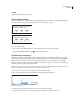
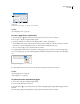
Glyphs palette
A. Show menu B. Font family C. Type style D. Zoom buttons
See also
“About OpenType fonts” on page 201
To insert a glyph from a specified font
1 Using the Type tool , click to place the insertion point where you want to enter a character.
2 Choose Type > Glyphs to display the Glyphs palette.
3 To display a different set of characters in the Glyphs palette, do either of the following:
• Select a different font (such as Adobe Caslon Pro) and type style, if available. From the Show menu, choose Entire
Font. Or, if you selected an OpenType font, choose from a number of OpenType categories.
• Choose a custom glyph set you’ve created from the Show menu.
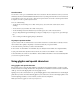
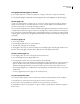
4 Scroll through the display of characters until you see the glyph you want to insert. If you selected an OpenType
font, you can display a pop-up menu of alternate glyphs by clicking the triangle in the lower right corner of the glyph
box.
Selecting an alternate glyph
5 Double-click the character you want to insert. The character appears at the text insertion point.
See also
“About OpenType fonts” on page 201
“Custom glyph sets” on page 155
To replace characters with alternate glyphs
1 Choose Type > Glyphs to display the Glyphs palette.
2 For Show, select Alternates for Selection.
3 Using the Type tool , select a character in your document. The Glyphs palette displays alternate glyphs, if they’re
available.
4 Double-click a glyph in the Glyphs palette to replace the selected character in the document.