
User Guide

158
ADOBE INCOPY CS2
User Guide
Finding and changing text
Finding and changing text
You can search for and change specific occurrences of characters, a word, a group of words, or text formatted a certain
way. You can also search for other items, including OpenType attributes such as fractions and swashes, or tabs, spaces,
and special characters.
Note the following:
• If the Track Changes command is turned on when you are changing or replacing text, all added and deleted text
is shown.
• All finding and changing procedures work essentially the same way in Galley, Story, and Layout views, whether
you are working with a linked or stand-alone story. If you are working with a linked story, you are limited to
character and paragraph styles defined in InDesign. When you work in Galley or Story view, you cannot see all of
the typographical effects you apply. You can see these effects only in Layout view.
• You can use Find and Find Next to search for text in locked stories, but Change and Change All do not affect text
in locked stories. To change text in locked stories, check out the story.
• You can also use the Find/Change command to search for and make changes to inline notes, table cells, and XML
tags. However, Change and Change All do not affect note anchors in Layout view.
• When you are searching in Galley or Story view, an alert appears when a table is encountered. Tables can be
searched only in Layout view.
See also
“Tracking changes” on page 165
To find and change text
You can find specific words or phrases in selected text, in one or more stories, in a document, or in multiple open
documents.
Important: In Galley view or Story view, the Find/Change command overlooks all tables and collapsed stories. However,
when you choose Change All, tables and collapsed stories are affected. For best results, use Find/Change in Layout View.
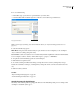
1 Click the insertion point in any text frame, or select the text you want to search.
2 Choose Edit > Find/Change.
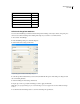
3 From the Search menu, specify the range of your search by choosing one of the following:
Document Searches the entire document in Layout view, and expanded stories in Galley and Story views.
All Documents Searches all currently open documents in Layout view, and all expanded stories in Galley and Story
views.
Story Story searches the current story; this is the default.
To End of Story Searches only the text between the current insertion point and the end of the active story.
Selection Searches only the selected text. This option does not appear if text is not selected.