
User Guide


159
ADOBE INCOPY CS2
User Guide
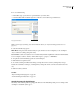
4 Do one of the following:
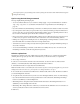
• In Find What, type or paste the text or special characters you want to find.
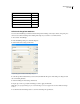
• Leave Find What blank and click the right arrow. Then choose from the list of special characters.
List of special characters
Note: To search only for formatting, leave the Find What box blank. (See “To find and change formatted text” on
page 161.)
5 Select from the following options:
Whole Word Disregards search characters if they are part of another word. For example, if you are searching for
“any” as a whole word, InCopy disregards “many.”
Case Sensitive Searches for only the word or words that exactly match the capitalization of the text in the Find What
box. For example, a search for “PrePress” will not find “Prepress,” “prepress,” or “PREPRESS.”
6 To replace the text in Find What, type the new text in Change To.
7 Click Find Next to begin the search.
8 To continue searching, click Find Next, Change (to change the current occurrence), Change All (a message
indicates the total number of changes), or Change/Find (to change the current occurrence and search for the next
one).
9 Click Done when you finish.
See also
“Keys for finding and changing text” on page 286
“To find and change formatted text” on page 161
Special characters for Find/Change
Use the keys in the following table for typing special characters in the Find/Change dialog box. For example, when
searching for a trademark symbol, type ^r.