
User Guide

163
ADOBE INCOPY CS2
User Guide
Using text macros
To create a text macro
A text macro is a shortcut for a sequence of keystrokes. A macro can be simple—it could type a word or phrase you
use often—or it can be complex, such as a formatted address. A macro code is the name of the text macro you create.
For example, instead of typing “Centers for Disease Control and Prevention” repeatedly, you can create a macro code
(such as “cdc”) that changes to the full company name.
1 Choose Window > Text Macros.
2 If you want to create a text macro from existing text, select the text in the document.
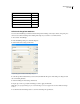
3 Choose New Macro from the Text Macros palette menu, or click the New Macro button in the Text Macros
palette.
4 Enter a macro code in the Macro Code text box. The code will appear in the Text Macros list.
Macro codes are case-sensitive.
5 For Macro Text, type the text string that you want entered when you activate the text macro.
6 To include text attributes from the existing text when inserting or swapping macro text, select Remember Text
Attributes. By default, inserted or swapped macro text uses the style attributes of the destination paragraph.
7 To assign a keyboard shortcut for activating the macro, place the cursor in the Macro Key Shortcut text box, and
press the keys you want to use for the shortcut. The shortcut will appear in the text box.
If the keyboard shortcut you want to assign to the macro is already assigned to another function, the alert symbol
appears at the bottom of the dialog box with the message “Currently Assigned To: [function].” If you choose to assign
the keyboard shortcut to the macro, the previous keyboard shortcut function is overridden.
8 Click OK.
You can replace the macro code with macro text automatically while typing, by using a macro key shortcut, or by
choosing Swap Macro Text from the Text Macros palette menu.
See also
“To insert macro text automatically” on page 164
To edit a text macro
1 From the list in the Text Macros palette, double-click the text macro you want to edit, or select it and click the Edit
Text Macro button
in the Text Macros palette.
2 Enter your changes in the text box, and click OK.
To duplicate a macro
Use the Duplicate Macro command to create a copy of an existing macro. The duplicate macro is assigned the same
code as the original, but with a number appended to it, and is listed immediately after the original macro in the Text
Macros palette. For example, duplicating the macro “DOT” creates a copy of the macro, named “DOT1.”
1 Select the text macro you want to duplicate from the list in the Text Macros palette.
2 Choose Duplicate Macro from the Text Macros palette menu.