
User Guide

12
Chapter 2: Work area
Work area basics
About the work area
By default, the InCopy work area consists of three views of a story (Galley, Story, and Layout views), palettes to help
you monitor and modify artwork, and menus that contain commands for performing tasks.
You can rearrange the work area to best suit your needs by moving, hiding, or showing palettes; zooming in or out;
scrolling to a different area of the document window; or creating multiple windows and views.
See also
“Viewing stories” on page 18
About InCopy toolbars, palettes, and menus
The InCopy window includes a main menu bar, and several customizable toolbars and palettes to provide the
controls you need to work with documents. You can access toolbar functions from the keyboard without ever having
to use the mouse. InCopy also provides floating palettes with groups of tools you use to work on your document. To
help unclutter the work area, you can collapse palettes into side tabs. Once you find a palette arrangement you like,
you can save it as a workspace and use it with other InCopy documents. You can also share these workspaces with
other InCopy users, creating a consistent editing environment across a workgroup.
If you’re working with a file from an Adobe Version Cue™ project, the document title bar provides additional infor-
mation about the status of a file. The Adobe Version Cue Workspace is a feature that is available only as part of Adobe
Creative Suite.
See also
“Version Cue managed projects” on page 29
To show or hide a toolbar
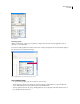
InCopy’s basic toolbars contain buttons for many commonly used tools and commands, such as opening, saving,
printing, scrolling, and zooming. Tool tips identify each tool button.
❖ Choose thetoolbar name from theWindowmenu. Acheck mark appearsnexttothe toolbarnameifitiscurrently
visible.
To customize a toolbar
You can choose the tools you want included in a toolbar, change the orientation, and combine or separate toolbars.
❖ Do any of the following:
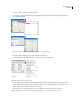
• To specify which tools appear on a toolbar, click the triangle at the end of the toolbar, select Customize, and then
select the tools you want to appear. Each menu contains options specific to the chosen toolbar.
• To move a toolbar, drag its title bar.