
User Guide

166
ADOBE INCOPY CS2
User Guide
• To enable tracking in all open stories in a multistory document, choose Changes > Enable Tracking in All Stories.
• To change the default for new documents, close all documents, and then choose Changes > Track Changes in
Current Story.
2 Add, delete, or move text within the story as needed.
Note: When TrackChanges is turned on,atrackchanges icon appearsatthe rightend of theStory barinGalleyview
and Story view.
To show or hide changes
When changes are hidden, the text appears as it would with the change-tracking feature turned off. That is, added
text is visible, deleted text is invisible, and moved or pasted text appears where it has been inserted.
When change-tracking is turned on, editing is tracked regardless of whether you work in Galley, Story, or Layout
view. You can view changes only in the Galley and Story views, not the Layout view.
❖ Do one of the following:
• Choose View > Show Changes or View > Hide Changes.
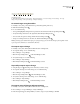
• Click the Show/Hide Changes button in the Track Changes toolbar.
To turn off change tracking
❖ Do any of the following:
• Choose Changes > Track Changes in Current Story. Track Changes is off when no check mark appears next to the
option.
• Click the Track Changes in Current Story button in the Track Changes toolbar.
• To disable tracking in all open stories in a multistory document, choose Changes > Disable Tracking in All Stories.
Note: If you disable tracking, no further changes will be tracked. Previously tracked changes will not be affected.
See also
“To show or hide changes” on page 166
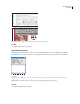
To view change information in the Change Info palette
1 Choose Window > Change Info.
2 Click the insertion point in a change. The Change Info palette displays the date, time, and other change infor-
mation.
Accepting and rejecting changes
When changes have been made to a story, whether by you or by others, the change-tracking feature enables you to
review all changes and decide whether to incorporate them into the story. You can accept or reject single changes,
only portions of a tracked change, or all changes at once.
When you accept a change, it becomes a normal part of the text flow and is no longer highlighted as a change. When
you reject a change, the text reverts to how it was before the change was made. To accept or reject tracked changes,
you can use either the Changes menu or the Change buttons on the Track Changes toolbar.