
User Guide

ADOBE INCOPY CS2
User Guide
174
Creating footnotes
To create a footnote
A footnote consists of two linked parts: the footnote reference number that appears in text, and the footnote text that
appears at the bottom of the column. You can create footnotes or import them from Word or RTF documents.
Footnotes are automatically numbered as they are added to a document. Numbering restarts in each story. You can
control the numbering style, appearance, and layout of footnotes. You cannot add footnotes to tables or to footnote
text.
1 Place the insertion point where you want the footnote reference number to appear.
2 Choose Type > Insert Footnote.
3 Type the footnote text.
AsyoutypeinLayoutview,thefootnoteareaexpandswhilethetextframeremainsthesamesize.Thefootnotearea
continues to expand upward until it reaches the line with the footnote reference. At that point, the footnote is split
to the next page, if possible. If the footnote cannot be split and if more text is added than can fit in the footnote area,
thelinecontainingthefootnotereferenceismovedtothenextpage,oranoverseticonappears.Insuchacase,you
should considering changing the text formatting.
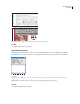
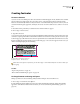
Footnote added to document in Layout view
A. Reference number B. Footnote text
When the insertion point is in a footnote, you can choose Type > Go To Footnote Reference to return to where you
were typing.
See also
“Tips for using footnotes” on page 176
“Microsoft Word and RTF import options” on page 147
To change footnote numbering and layout
Changes you make to footnote numbering and layout affect existing footnotes and all new ones.
1 Choose Type > Document Footnote Options.
2 In the Numbering and Formatting tab, select options that determine the numbering scheme and formatting
appearance of the reference number and footnote text. (See “Footnote numbering and formatting options” on
page 175.)
A
B