
User Guide

ADOBE INCOPY CS2
User Guide
13
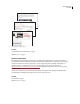
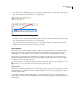
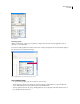
• Tocombinetoolbars,clickthegripperareaofatoolbar,anddragthetoolbarontopofanotheroralongthesame
edge of the application window (Windows) or screen (Mac OS).
Gripper area of the toolbar
Combining toolbars
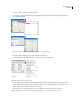
• To switch a toolbar to a floating palette, click the gripper area of the toolbar, and drag the toolbar away from the
edge of the application window (Windows) or screen (Mac OS).
• To separate a grouped toolbar, click the gripper area of the toolbar, and drag the toolbar away from the group.
Dragging a toolbar out of an existing group creates a new toolbar.
About palettes
Most Adobe products include a number of palettes to help you monitor and modify your work. InCopy’s default
palettes appear in side tabs at the right side of the application window (Windows) or screen (Mac OS). You can
display, hide, or move these palettes as you work. You can also open and close individual palettes as needed.
InCopy provides several palettes, each containing options related to a specific aspect of your writing work. For
example, the Paragraph Styles palette contains a list of currently defined paragraph styles you can click to apply to
the paragraph you are working on in the story.
The Scripts palette lets you automate many InCopy tasks using JavaScript, Applescript, or Visual Basic. For more
information, see the Scripting Guide in the Technical folder on the InCopy CD.
Docking palettes
When you dock a palette to another palette, you connect the top edge of one palette to the bottom edge of another.
Docked palettes move together and are shown or hidden together. In contrast, when you group palettes, only the
frontmost palette is visible.
You can dock one palette to another single palette or to a group of palettes. However, you can’t dock a group of
palettes unless you dock each of them individually, because docking involves dragging an individual palette’s tab and
not the title bar.