
User Guide



184
ADOBE INCOPY CS2
User Guide
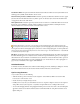
6 In the Word box, type or edit the word to be added to the word list.
7 If you don’t like InCopy’s hyphenation points, follow these guidelines to indicate your preferred hyphenation of
the word:
• Type one tilde (~) to indicate the best possible hyphenation points, or the only acceptable hyphenation point, in
the word.
• Type two tildes (~~) to indicate your second choice.
• Type three tildes (~~~) to indicate a poor but acceptable hyphenation point.
• If you want the word never to be hyphenated, type a tilde before its first letter.
If you need to include an actual tilde in a word, type a backslash before the tilde (\~).
8 Click Add, and then click Done. InCopy adds the word to the currently selected Dictionary List.
Note: Remember that hyphenation points interact with the hyphenation settings in your documents. As a result, the word
might not break where you expect it to. Control these settings by choosing Hyphenation in the Paragraph palette menu.
(See “Hyphenation and justification” on page 232.)
To remove or edit words in hyphenation exception lists
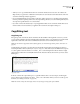
1 Choose Edit > Spelling > Dictionary.
2 In the Language menu, choose a language.
3 In the Target menu, choose the dictionary from which you want to remove the word. The Target menu lets you
choose an external user dictionary or any open InCopy document.
4 In the Dictionary List menu, do one of the following:
• To modify the list of additions to the selected Target word list, choose Added Words.
• To modify the list of words that are flagged as misspelled, choose Removed Words.
• To modify the list of words that are being ignored during the current InCopy session, choose Ignored Words. This
list includes all the words for which you’ve chosen Ignore All.
5 In the word list, edit the word, or select the word and click Remove.
6 Click Done.
Using dictionaries in a workgroup
Make sure that each station in your workgroup has the same customized user dictionaries installed and added, so
that a document uses the same spelling and hyphenation rules regardless of who is working on it. You can either
make sure that everyone adds the same dictionaries to their computer, or you can share a user dictionary over the
network server.
A lock icon indicates that a dictionary is locked and can be used, but not edited. When a user dictionary is stored
on a server, the first user to load the dictionary locks the file; all subsequent users see that the dictionary is locked.
Files can also be locked through the operating system, when the file is made read-only. If you share a user dictionary
over the network server, you may want to lock the file so that it’s read-only for all users, allowing only the adminis-
trator to add words.