
User Guide

188
ADOBE INCOPY CS2
User Guide
3 For Style Name, type a name for your new style.
4 For Based On, select which style the current style is based on. (See “To base one style on another” on page 190.)
5 For Next Style (Paragraph Styles palette only), specify which style is applied after the current style when you press
Enter or Return. (See “Next Style” on page 190.)
6 To add a shortcut keystroke, make sure Num Lock is turned on. Then hold down any combination of Shift, Alt,
or Ctrl (Windows) or Shift, Option, and Command (Mac OS), and press a number on the numeric keypad. You
cannot use letters or non-keypad numbers for defining style shortcuts.
7 To specify the formatting attributes, click a category (such as Basic Character Formats) on the left, and specify the
attributes you want to add to your style.
8 When you’ve finished specifying the formatting attributes, click OK.
See also
“Applying styles” on page 191
“To create one or more nested styles” on page 197
“To import styles from other documents” on page 188
To import styles from other documents
You can import paragraph styles and character styles from an InDesign or InCopy document into a stand-alone
InCopy document or InCopy content that is linked to InDesign. You can determine which styles are loaded, and what
should occur if a loaded style has the same name as a style in the current document.
Note: If you import styles into linked content, new styles are added to the InDesign document when the content is
updated, and any style with a name conflict is overridden by the InDesign style with the same name.
1 In the Styles palette, do one of the following:
• Choose Load Character Styles or Load Paragraph Styles in the Styles palette menu.
• Choose Load All Styles in the Styles palette menu to load both character and paragraph styles.
2 Double-click the InDesign or InCopy document containing the styles you want to import.
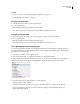
3 In the Load Styles dialog box, make sure that a check mark appears next to the styles you want to import. If any
existing style has the same name as one of the imported styles, choose one of the following options under Conflict
With Existing Style, and then click OK:
Use Incoming Style Definition Overwrites the existing style with the loaded style and applies its new attributes to
all text in the current document that used the old style. The definitions of the incoming and existing styles are
displayed at the bottom of the Load Styles dialog box so that you can view a comparison.
Auto-Rename Renames the loaded style. For example, if both documents have a Subheading style, the loaded style
is renamed “Subheading copy” in the current document.
See also
“Version Cue managed projects” on page 29