
User Guide

192
ADOBE INCOPY CS2
User Guide
See also
“To preserve or remove overrides when applying paragraph styles” on page 194
“To clear paragraph style overrides” on page 194
To apply a character style
1 Select the characters to which you want to apply the style.
2 Do one of the following:
• Click the character style name in the Character Styles palette.
• Press the keyboard shortcut you assigned to the style. (Make sure that Num Lock is on.)
To apply a paragraph style
1 Click in a paragraph, or select all or part of the paragraphs to which you want to apply the style.
2 Do one of the following:
• Click the paragraph style name in the Paragraph Styles palette.
• Press the keyboard shortcut you assigned to the style. (Make sure that Num Lock is on.)
To use Quick Apply to find and apply styles
In documents that include many styles, it can be difficult to find the style you want without scrolling through a long
list. Use Quick Apply to locate a style quickly by typing part of its name. You can use Quick Apply to find and apply
paragraph styles or character styles.
1 Select the text to which you want to apply the style.
2 Choose Edit > Quick Apply, or press Ctrl+Enter (Windows) or Ctrl+Return (Mac OS).
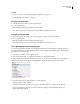
3 Start typing the name of the style. The name you type doesn’t need to be an exact match. For example, typing he
will locate styles such as Head 1, Head 2, and Subheading; and typing he2 will narrow the search to Head 2.
Using Quick Styles to apply a style.
4 Select the style you want to apply, and then do one of the following:
• To apply a style, press Enter or Return.
• To apply a paragraph style and remove overrides, press Alt+Enter (Windows) or Option+Return (Mac OS).
• To apply a paragraph style and remove overrides and character styles, press Alt+Shift+Enter (Windows) or
Option+Shift+Return (Mac OS).