
User Guide

195
ADOBE INCOPY CS2
User Guide
If no text is selected when you choose Break Link To Style, any new text you type uses the same formatting as the
selected style, but no style is assigned to that text.
See also
“To clear paragraph style overrides” on page 194
“To preserve or remove overrides when applying paragraph styles” on page 194
To find and replace styles
Use the Find/Change dialog box to find all instances of a particular style and replace it with another.
1 Choose Edit > Find/Change.
2 For Search, select Document to change the style throughout the document.
3 Leave the Find what and Change to options blank, and then click More Options.
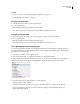
4 Under Find Format Settings, click Format. Select the style you want to search for from the Character Style or
Paragraph Style menu, and then click OK.
5 Under Change Format Settings, click Format. Select the replacement style from the Character Style or Paragraph
Style menu, and then click OK.
6 Click Find Next, and then use the Change/Find or Change All buttons to replace the style.
See also
“To find and change text” on page 158
Drop caps and nested styles
To apply a character style to a drop cap
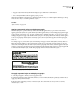
You can apply a character style to the drop-cap character or characters in a paragraph. For example, if you want a
drop-cap character to have a different color and font than the rest of the paragraph, you can define a character style
that with these attributes. Then you can either apply the character style directly to a paragraph, or you can nest the
character style in a paragraph style.
Note: You cannot create new styles in content linked to an InDesign layout.