
User Guide


196
ADOBE INCOPY CS2
User Guide
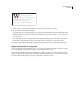
hat you don’t feel,
you will not grasp by art,
Unless it wells out of your soul
And with sheer pleasure takes control,
Compelling every listener’s heart.
But sit – and sit, and patch and knead,
Drop cap formatted automatically by nested character style
1 Create a character style that has the formatting you want to use for the drop-cap character.
2 Do one of the following, and then click OK:
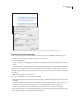
• To apply the drop cap to a single paragraph, choose Drop Caps and Nested Styles from the Paragraph palette menu,
specify the number of drop-cap lines and characters, and then choose the character style. (See “To create a drop
cap” on page 215.)
• To nest the character style in a paragraph style, double-click the paragraph style, and then click Drop Caps and
Nested Styles. Specify the number of drop-cap lines and characters, and then choose the character style.
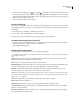
If you want to apply a different nested style to any characters after the drop cap, use the New Nested Style option.
Applying nested styles to a paragraph
You can specify character-level formatting for one or more ranges of text within a paragraph. You can also set up two
or more nested styles to work together, one taking over where the previous one ends.
Nested styles are especially useful for run-in headings. For example, you can apply one character style to the first
letter in a paragraph and another character style that takes effect through the first colon (:). For each nested style, you
can define a character that ends the style, such as a tab character or the end of a word.