
User Guide


197
ADOBE INCOPY CS2
User Guide
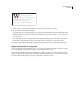
The Number character style formats the first word, and the Run-in character style formats all text through the first colon.
To create one or more nested styles
You can create new styles in a stand-alone InCopy document, but not in content linked to an InDesign layout.
1 Create one or more character styles that you want to use to format text.
2 Do one of the following:
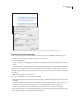
• To add nested styles to a paragraph style, double-click the paragraph style, and then click Drop Caps and Nested
Styles.
• To add nested styles to a single paragraph, choose Drop Caps and Nested Styles from the Paragraph palette menu.
Note: For best results, apply nested styles as part of paragraph styles. If you apply nested styles as local overrides to a
paragraph, subsequent editing or formatting changes in the nested style can produce unexpected character formatting in
the styled text.
3 Click New Nested Style one or more times.
4 Do any of the following for each style, and then click OK:
• Click the character style area, and then select a character style to determine the appearance of that section of the
paragraph.
• Specify the item that ends the character style formatting. You can also type the character, such as a colon (:) or a
specific letter or number. You cannot type a word. (See “Nested style character options” on page 198.)
• Specify how many instances of the selected item (such as characters, words, or sentences) are required.
• Choose Through or Up To. Choosing Through includes the character that ends the nested style, while choosing
Up To formats only those characters that precede this character.