
User Guide


204
ADOBE INCOPY CS2
User Guide
If a TrueType font is installed and the document contains a T1 font, InCopy indicates that the font is missing.
To make missing fonts available to InCopy
❖ Do one of the following:
• Install the missing fonts on your system. (See “Installing fonts” on page 200.)
• Place the missing fonts in the InCopy Fonts folder, which is located in the InCopy CS folder. Fonts in this folder
are available only to InCopy.
• Activate the missing fonts using a font-management application.
If you don’t have access to the missing fonts, use the Find Font command to search for and replace missing fonts. (See
“To find or replace fonts” on page 162.)
To highlight substituted fonts in your document
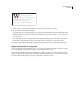
If the Select Substituted Fonts preferences option is selected, text formatted with missing fonts appears in pink
highlighting so that you can easily identify text formatted with a missing font.
1 Choose Edit > Preferences > Composition (Windows) or InCopy > Preferences > Composition (Mac OS).
2 Select Substituted Fonts, and then click OK.
To use multiple master fonts
Multiple master fonts are customizable Type 1 fonts whose typeface characteristics are described in terms of variable
design axes, such as weight, width, style, and optical size.
Some multiple master fonts include an optical size axis, which lets you use a font specifically designed for optimal
readabilityataparticular size.Generally,the opticalsizefor asmaller font,suchas10point,isdesignedwithheavier
serifs and stems, wider characters, less contrast between thick and thin lines, taller x height, and looser spacing
between letters than the optical size for a larger font, such as 72 point.
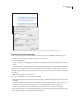
1 Choose Edit > Preferences > Type (Windows) or InCopy > Preferences > Type (Mac OS).
2 Select Automatically Use Correct Optical Size, and click OK.
Leading
Leading
The vertical space between lines of type is called leading. Leading (rhymes with “sledding”) is measured from the
baseline of one line of text to the baseline of the line above it. The baseline is the invisible line on which most letters—
that is, those without descenders—sit.
The default auto-leading option sets the leading at 120% of the type size (for example, 12-point leading for 10-point
type). When auto-leading is in use, InCopy displays the leading value in parentheses in the Leading menu of the
Character palette.
By default, leading is a character attribute, which means that you can apply more than one leading value within the
same paragraph. The largest leading value in a line of type determines the leading for that line. However, you can
select a preferences option so that leading applies to the entire paragraph, instead of to text within a paragraph. This
setting does not affect the leading in existing text.