
User Guide


205
ADOBE INCOPY CS2
User Guide
A
C
B
ocers take them away: good
guard,Until their greater
pleasures rst be known at
are to censure them.
CO R DELI A: We are not the
rst Who, with best meaning,
have incurr'd the worst.
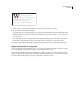
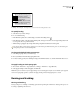
Leading
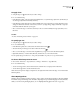
A . Leading B . Text height C . Larger text size of one word increases leading for that one line.
To specify leading
1 Select the text you want to change.
2 Do one of the following:
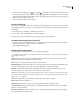
• In the Character palette, choose the leading you want in the Leading menu .
• In the Character palette, select the existing leading value, and type a new value. You can type leading values from
0 to 5000 points in 0.001-point increments.
• While creating a paragraph style, change the leading using the Basic Character Formats panel.
You can also adjust vertical space by aligning text to the baseline grid. When baseline grid is set, the baseline grid
setting takes precedence over the leading value.
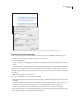
To change the default leading percentage
1 Select that paragraphs that you want to change.
2 Choose Justification from the Paragraph palette menu.
3 For Auto Leading, specify a new default percentage. The minimum value is 0%, and the maximum value is 500%.
To apply leading to whole paragraphs
1 Choose Edit > Preferences > Type (Windows) or InCopy > Preferences > Type (Mac OS).
2 Select Apply Leading to Entire Paragraph, and click OK.
Note: When you use a character style to apply leading to text, the leading affects only the text to which the style is applied,
not the entire paragraph, regardless of whether the Apply Leading to Entire Paragraph option is selected.
Kerning and tracking
Kerning and tracking
Kerning is the process of adding or subtracting space between specific pairs of characters. Tracking is the process of
loosening or tightening a block of text.