
User Guide



207
ADOBE INCOPY CS2
User Guide
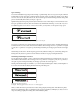
To use metrics kerning
1 Using the Type tool , set the insertion point between characters you want to pair kern, or select the text you
want to kern.
2 In the Character palette, select Metrics in the Kerning menu. Metrics is the default.
See also
“Keys for working with type” on page 285
To use optical kerning
1 Using the Type tool , set the text insertion point between characters you want to pair kern or select the text you
want to kern.
2 In the Character palette, select Optical in the Kerning menu.
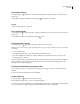
To adjust kerning manually
1 Using the Type tool , click to place an insertion point between two characters.
Note: If a range of text is selected, you can’t manually kern the text (you can choose only Metrics, Optical, or 0). Instead,
use tracking.
2 Do one of the following:
• In the Character palette, type or select a numeric value in the Kerning menu.
• Press Alt+Left/Right Arrow (Windows) or Option+Left/Right Arrow (Mac OS) to decrease or increase the
kerning between two characters.
The amount of the word kerning adjustment is the same as the Kerning value in the Units & Increments Preferences
dialog box. When you press the shortcut and hold down the Ctrl or Command key, the kerning amount is the
Kerning preferences value multiplied by 5.
To change the default kerning increment value
1 Choose Edit > Preferences > Units & Increments (Windows) or InCopy > Preferences > Units & Increments
(Mac OS).
2 Type a new value for the Kerning option, and click OK.
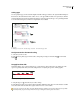
To turn off kerning
1 Using the Type tool , select the text you want to change.
2 In the Character palette, type 0 or choose 0 in the Kerning menu.
You can also press Ctrl+Alt+Q (Windows) or Command+Option+Q (Mac OS) to reset kerning and tracking. When
you do so, kerning is set to Metrics, regardless of which kerning option was previously applied.