
User Guide



ADOBE INCOPY CS2
User Guide
211
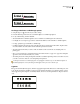
Before and after adjusting underlines
To change underline or strikethrough options
1 Using the Type tool , select the text you want to change.
2 From the Character palette menu, choose Underline Options or Strikethrough Options.
3 Do any of the following, and then click OK:
• Select Underline On or Strikethrough On to turn on underline or strikethrough for the selected text.
• For Weight, choose a weight or type a value to determine the thickness of the underline or strikethrough line.
• For Type, specify the type of underline or strikethrough.
• For Offset, determine the vertical position of the line. The offset is measured from the baseline. Negative values
move the underline above the baseline and the strikethrough below the baseline.
• Select Overprint Stroke when you want to make sure that the stroke doesn’t knock out underlying inks on a
printing press.
• Choose a color and tint. If you specified any line type other than solid, choose a gap color or gap tint to change the
appearance of the area between dashes, dots, or lines.
• Select Overprint Stroke or Overprint Gap if the underline or strikethrough will be printed over another color, and
you want to avoid errors that can occur with printing misregistration.
To change the underline or strikethrough options in a paragraph or character style, use the Underline Options or
Strikethrough Options section of the dialog box that appears when you create or edit the style.
Ligatures
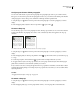
InCopy can automatically insert ligatures, which are typographic replacement characters for certain letter pairs, such
as “fi” and “fl,” when they are available in a given font. The characters that InCopy uses when the Ligature option is
selectedappearandprintasligatures,butarefullyeditable,anddonotcausethespellcheckertoflagaworderrone-
ously.
Individual characters (top) and ligature combinations (bottom)