
User Guide



212
ADOBE INCOPY CS2
User Guide
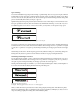
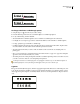
With OpenType fonts, when you choose Ligatures in the Character palette menu, InCopy produces any standard
ligature defined in the font, as determined by the font designer. However, some fonts include more ornate, optional
ligatures, which can be produced when you choose the Discretionary Ligatures command.
See also
“About OpenType fonts” on page 201
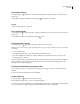
To apply ligatures to letter pairs
1 Select text.
2 Select Ligatures in the Character palette menu.
To change the color and gradient of text
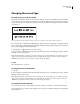
You can apply colors and gradients to the stroke and fill of characters with the Swatches palette. For a linked story,
you can apply any colors or gradients defined by the linked InDesign layout. For a stand-alone story, you can apply
any of the default colors or new colors you create for the document.
Note: You cannot create gradients in InCopy. Gradients only appear when imported from InDesign.
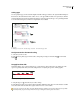
A B C
Swatches palette
A. Swatch affects fill or stroke B. Swatch affects container or text C. Tint percentage
1 Using the Type tool , select the text you want to color.
2 Choose Window > Swatches to open the Swatches palette.
3 In the Swatches palette, click a color or gradient swatch.
Note: You can apply colors to text in either Galley, Story, or Layout view; however, color changes are visible only in
Layout view.
To specify the type of swatches to display
1
Choose Window > Swatches to open the Swatches palette.
2 At the bottom of the palette, specify one of the following:
• To see all color, tint, and gradient swatches, click the Show All Swatches button.
• To see only process color, spot color, and tint swatches, click the Show Color Swatches button.
• To see only gradient swatches, click the Show Gradient Swatches button.