
User Guide


26
ADOBE INCOPY CS2
User Guide
To move through a document with the Hand tool
❖ In Layout view, select the Hand tool , and click and drag to push the document in the direction you want it to
move.
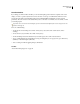
Dragging to view another part of the page
To go to another page in Layout view
❖ Do one of the following:
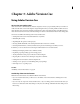
• Click the buttons in the status bar, as shown in the following illustration:
A B C D E
Status bar in Layout view
A. First-page button B. Previous-page button C. Page number display box D. Next-page button E. Last-page button
• Choose the page number from the pop-up menu on the status bar.
To jump to position markers
You can set a marker at a specific location in the text so that you can easily return to it using a command or shortcut.
This is useful if you change your place in the document to do another action, for example, to verify a fact in another
area of text. An InDesign document can have only one position marker at a time per session. Inserting a marker
deletes a previously placed marker. Closing a document also deletes a marker.
❖ Choose Edit > Position Marker, and do any of the following:
• To add a marker, make sure you have placed the insertion point in the text and then select Insert Marker.
• To replace an existing marker, select Replace Marker.
• To delete a marker, select Remove Marker.
• To return to a marker, select Go To Marker.