
User's Manual


Chapter 12 Camera 97
Take photos and videos
Camera oers several photo and video modes, which let you shoot stills, square-format photos,
panoramas, time-lapse, videos, and slow-motion videos (iPhone 5s or later).
Choose a mode. Drag the screen left or right, or tap the camera mode labels to choose Time-
Lapse, Slo-Mo, Video, Photo, Square, or Pano.
Take a photo. Choose Photo, then tap the Take Picture button or press either volume button.
•
Take Burst shots: (iPhone 5s or later) Touch and hold the Take Picture button to take rapid-re
photos in bursts (available while in Square or Photo mode). The shutter sound is dierent,
and the counter shows how many shots you’ve taken, until you lift your nger. To see the
suggested shots and select the photos you want to keep, tap the thumbnail, then tap Select.
The gray dot(s) under the thumbnails mark the suggested photos. To copy a photo from the
burst as a separate photo in Photos, tap the circle in the lower-right corner of the photo. To
delete the burst of photos, tap it, then tap .
•
Apply a lter: Tap to apply dierent color eects, such as Mono or Chrome. To turn o a
lter, tap , then tap None. You can also apply a lter later, when you edit the photo. See Edit
photos and trim videos on page 94.
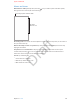
A rectangle briey appears where the exposure is set. When you photograph people,
face detection balances the exposure across up to 10 faces. A rectangle appears for each
face detected.
Note: On iPhone 6 and iPhone 6 Plus, you might not always see an automatic exposure
rectangle, but the focus and exposure are being set.
Exposure is automatic, but you can set the exposure manually for the next shot by tapping an
object or area on the screen. With an iSight camera, tapping the screen sets the focus and the
exposure, and face detection is temporarily turned o. To lock the exposure and focus, touch
and hold until the rectangle pulses. Take as many photos as you want. When you tap the screen
again, the automatic settings and face detection turn back on.
Adjust the exposure. Tap to see next to the exposure rectangle, then slide up or down to
adjust the exposure.
Take an Iris photo. Iris photos are lively photos composed of a still image and a total of 3
seconds of video captured just before and after the photos is taken. Tap <icon> to turn Iris on.
Tap the Take Picture button, taking care to watch the animation that surrounds the button. When
the animation stops, it signals the end of the Iris exposure.
Apple Confidential
Draft