
User's Manual


Chapter 12 Camera 98
Take a panorama photo. (iSight camera) Choose Pano, tap the Take Picture button, then pan
slowly in the direction of the arrow. To pan in the other direction, rst tap the arrow. To pan
vertically, rst rotate iPhone to landscape orientation. You can reverse the direction of a vertical
pan, too.
Capture an experience with time-lapse. (iSight camera) Choose Time-Lapse, set up iPhone
where you want, then tap the Record Time-Lapse Video button to start capturing a sunset, a
ower opening, or other experiences over a period of time. Tap the Record Time-Lapse Video
button again to stop. The time-lapse photos are compiled into a short video that you can watch
and share.
Shoot some video. Choose Video, then tap the Record Video button or press either volume
button to start and stop recording. Video records at 30 fps (frames per second). With iPhone 6 or
iPhone 6 Plus, you can switch it to 60 fps in Settings > Photos & Camera.
•
Snap a still while recording: (iPhone 5 or later) Tap the white Take Picture button in the
lower-left corner.
•
Take it slow: (iPhone 5s or later) Choose Slo-Mo to shoot slow motion video. You can set which
section to play back in slow motion when you edit the video. On iPhone 6 and iPhone 6 Plus,
you can tap the bottom-right corner of the screen to switch between 120 fps and 240 fps.
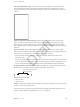
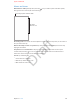
Set the slow-motion section of a video. Tap the thumbnail, then use the vertical bars beneath
the frame viewer to set the section you want to play back in slow motion.
Slide to adjust the slow-motion
section of the video.
Slide to adjust the slow-motion
section of the video.
Use Siri. Say something like:
•
“Open Camera”
•
“Take a picture”
Zoom in or out. (iSight camera) Pinch the image on the screen. For iPhone 5 or later, zoom works
in video mode as well as photo mode.
If Location Services is turned on, photos and videos are tagged with location data that can be
used by apps and photo-sharing websites. See Privacy on page 44.
Apple Confidential
Draft