
User's Manual


Chapter 9 Messages 82
Raise iPhone to listen or reply to an audio message. Raise iPhone to your ear, as if you were
talking on the phone, to play incoming audio messages automatically. Raise iPhone to your ear
again to reply to an audio message. Turn this feature on or o at Settings > Messages, under
Audio Messages.
See what time a message was sent or received. Drag any bubble to the left.
See a person’s contact info. In a conversation, tap Details, then tap . Tap the info items to
perform actions, such as making a voice or FaceTime call.
Send messages to a group (iMessage and MMS). Tap , then enter multiple recipients. With
MMS, group messaging must also be turned on in Settings > Messages, and replies are sent only
to you—they aren’t copied to the other people in the group.
Give a group a name. While viewing the conversation, tap Details, drag down, then enter the
name in the Subject line.
Add someone to a group. Tap the To eld, then tap Add Contact.
Leave a group. Tap Details, then tap Leave this Conversation.
Keep it quiet. Tap Details, then turn on Do Not Disturb to mute notications for the conversation.
Block unwanted messages. On a contact card, tap Block this Caller. You can see someone’s
contact card while viewing a message by tapping Details, then tapping . You can also
block callers in Settings > Messages > Blocked. You will not receive voice calls, FaceTime
calls, or text messages from blocked callers. For more information about blocking calls, see
support.apple.com/kb/HT5845.
Manage conversations
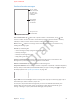
Conversations are saved in the Messages list. A blue dot indicates unread messages. Tap a
conversation to view or continue it.
View the Messages list. From a conversation, tap Messages or swipe to the right. With
iPhone 6 Plus, you can also rotate iPhone to landscape orientation to see both the Messages list
and the selected conversation.
Forward a message. Touch and hold a message or attachment, tap More, select additional items
if desired, then tap .
Apple Confidential
Draft