
User's Manual

Chapter 3 Basics 48
•
Erase iPhone: Protect your privacy by erasing all the information and media on your iPhone
and restoring it to its original factory settings. Erase iPhone also removes the ability to make
payments using your credit and debit cards used for Apple Pay (iPhone 6 or later, and iPhone 6
Plus or later). See Apple Pay on page 139.
Note: Before selling or giving away your iPhone, you should erase it completely to remove all of
your personal data and turn o Find My iPhone to ensure the next owner can activate and use
the device normally. Go to Settings > General > Reset > Erase All Content and Settings. See Sell
or give away iPhone on page 200.
Find My Friends
The Find My Friends app is a great way to share your location with people who are important
to you. Friends and family members who share their locations with you appear on a map so you
can quickly see where they are. You can set notications for friends and family members to alert
you when they’ve left from or arrived at various locations.
Turn on Share My Location. Go to Settings > iCloud > Share My Location.
Share My Location with a friend. Open the Find My Friends app on iPhone and then tap
Add. Add a friend by tapping it, then tap Done. Choose the length of time you want to share
your location.
Share My Location using AirDrop. Tap Add, then tap on a friend who appears in AirDrop. Choose
the length of time you want to share your location.
Set a notication. Tap on a friend, then tap Notify Me. Choose whether you want to be notied
when a friend leaves from or arrives at a location. Choose their current location or tap Other to
create a new location for the notication.
Charge and monitor the battery
iPhone has an internal, lithium-ion rechargeable battery. For more information about the
battery—including tips for maximizing battery life—see www.apple.com/batteries/.
WARNING: For important safety information about the battery and charging iPhone, see
Important safety information on page 193.
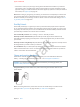
Charge the battery. Connect iPhone to a power outlet using the included cable and USB
power adapter.
Note: Connecting iPhone to a power outlet can start an iCloud backup or wireless iTunes
syncing. See Back up iPhone on page 198 and Sync with iTunes on page 22.
Apple Confidential
Draft