
User's Manual

Chapter 3 Basics 46
Allow access to features when iPhone is locked. Go to Settings > Touch ID & Passcode (iPhone
models with Touch ID) or Settings > Passcode (other models). Optional features include:
•
Today (see Notication Center on page 37)
•
Notications View (see Notication Center on page 37)
•
Siri (if enabled, see Siri settings on page 52)
•
Wallet (see Chapter 26, Wallet, on page 138)
Allow access to Control Center when iPhone is locked. Go to Settings > Control Center. See
Control Center on page 36.
Erase data after ten failed passcode attempts. Go to Settings > Touch ID & Passcode (iPhone
models with Touch ID) or Settings > Passcode (other models), then tap Erase Data. After ten
failed passcode attempts, all settings are reset, and all your information and media are erased by
removing the encryption key to the data.
If you forget your passcode, you must restore the iPhone software. See Restore iPhone on
page 199.
Touch ID
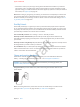
On iPhone models with Touch ID, you can unlock iPhone by placing a nger on the Home
button. Touch ID also lets you:
•
Use your Apple ID password to make purchases in the iTunes Store, App Store, or iBooks Store
•
Present your credit card or debit card when making a purchase in a store that oers Apple Pay
as a method of payment
•
Provide debit and credit card info, billing and shipping addresses, and contact info when
paying in an app that oers Apple Pay as a method of payment
Set up the Touch ID sensor. Go to Settings > Touch ID & Passcode. Set whether you want to use
a ngerprint to unlock iPhone, and to make purchases. Tap Add a Fingerprint, then follow the
onscreen instructions. You can add more than one ngerprint (your thumb and forenger, for
example, or one for your spouse).
Note: If you turn iPhone o after setting up the Touch ID sensor, you’ll be asked to conrm your
passcode when you turn iPhone back on and unlock it the rst time. You’ll also be asked for your
Apple ID password for the rst purchase you make in the iTunes Store, App Store, or iBooks Store.
Delete a ngerprint. Tap the ngerprint, then tap Delete Fingerprint. If you have more than one
ngerprint, place a nger on the Home button to nd out which ngerprint it is.
Name a ngerprint. Tap the ngerprint, then enter a name, such as “Thumb.”
Use the Touch ID sensor to make a payment in the iTunes Store, App Store, or iBooks Store.
When purchasing from the iTunes Store, App Store, or iBooks Store, follow the prompts to enable
purchases with your ngerprint. Or go to Settings > Touch ID & Passcode, then turn on iTunes &
App Store.
Use Touch ID for Apple Pay. (iPhone 6 or iPhone 6 Plus) Go to Settings > Touch ID & Passcode
to ensure that Apple Pay is enabled with your Touch ID. For more information see Apple Pay on
page 139.
iCloud Keychain
iCloud Keychain keeps your Safari website user names and passwords, credit card information,
and Wi-Fi network information up to date. iCloud Keychain works on all your approved devices
(iOS 7 or later) and Mac computers (OS X Mavericks or later).
Apple Confidential
Draft