AT&T DEFINITY ® Communications System Generic 1 and Generic 3 8503T Voice Terminal User's Guide
NOTICE While reasonable efforts were made to ensure that the information in this document was complete and accurate at the time of printing, AT&T can assume no resposibility for any errors. Changes or corrections to the information contained in this document may be incorporated into future issues. TO ORDER COPIES OF THIS DOCUMENT Contact: Order: AT&T Customer Information Center 2855 North Franklin Road P.O. Box 19901 Indianapolis, Indiana 46219 1 800 432-6600, In Canada: 1 800 255-1242 Document No.
Contents Your ISDN 8503T Voice Terminal 1 What the Features Do 4 Phone Features 4 Switch Features 5 How to Use the Features 7 Special Instructions for General Use 7 Conventions Used in Procedure Descriptions 7 Quick Reference Lists 8 Answering and Placing a Call Conference Drop Hold Memory Dialing Message Mute Redial Select Ring (and Ringer Volume) 9 9 10 10 11 12 13 13 13 14 Self-Test Transfer 15 16 Phone Features Switch Features Special Instructions Abbreviated Dialing Automatic Callb
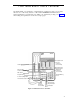
Your ISDN 8503T Voice Terminal The ISDN 8503T voice terminal is comprehensively equipped so that you can make the best use of the many features of the AT&T DEFINITY® Communications System. Familiarize yourself with your 8503T voice terminal by looking over Figure 1 and reading the explanations on the next couple pages.
Starting at the right of Figure 1 and continuing clockwise: Designation card For noting the extension of your voice terminal or the feature that the appropriate button can access, and for labeling memory-dialing location assignments. On the back of the designation card are instructions for programming memory-dialing locations, changing the ringing pattern on your voice terminal, and adjusting the loudness of the tone ringer.
Drop/Test button For disconnecting from a call or dropping the last party added to a conference call (the Drop feature); or, with [ Program ] , testing the ringer and lights on the voice terminal (the Self-Test feature). This button is labeled [ Drop ] Hold button A red button used for putting calls on hold. Handset cord jack (on back of voice terminal) Located on the back of the voice terminal. For connecting the handset cord to your voice terminal.
What the Features Do The following lists 19 voice features and briefly explains what each one does and how you might want to use it. The features in this guide have been divided into 2 categories: ● Phone Features Those voice terminal features that you can use immediately no matter which communications system your voice terminal is connected to. The first 10 features listed here are Phone features.
Self-Test Activates the lights and ringer on your voice terminal. Use when you want to test the operation of the lights, ringer, and dial pad keys. Transfer Transfers a call from your voice terminal to another extension or outside number. Use when your caller needs to speak further with someone else. Note: Calls from an outside number to your voice terminal can be transferred only to an extension, not to another outside number.
Send All Calls Temporarily sends all your calls to the extension of a person designated to answer them when you cannot (perhaps a secretary or receptionist). Use when you will be away from your desk for awhile, or when you do not wish to be interrupted by voice terminal calls. Voice Message Retrieval Gives you messages (via computerized voice) left for you through Leave Word Calling or as typed by a covering user.
How to Use the Features The procedures which follow give short, step-by-step instructions for using each feature. For your convenience, features are listed alphabetically. Special Instructions for General Use As you operate the features assigned to your voice terminal, keep in mind the following general rules. ● Follow carefully all the steps listed in the procedure for the particular feature you are using.
[feedback tone] The tone that appears in brackets directly across from a procedural step indicates what you should hear from your handset after successfully performing that step. Feedback tones may also be included in the bullet listing of resulting light indications and tones after an individual step has been completed. For a list of tones and their meanings, see the section titled Tones and Their Meanings. Quick Reference Lists At the end of this booklet is a set of quick reference lists.
Phone Features The following features can be used immediately, no matter which communications system your 8503T voice terminal is connected to. To the right of each Phone Feature is a box marked with a check [ ✓ ]. This check indicates that you can use any of these features immediately, without any help from your System Manager.
Conference To add another party to a call [✓] 1 While on a call, press [ Conf ] to add next party ● Current call is put on hold ● Red light next to [ Conf ] flutters ● An idle call appearance button is automatically selected for placing a call to another party Note: If an idle call appearance is not automatically selected, press one of your own choice.
[✓] Hold To place a call on hold while you answer another call, place a call, or perform another task 1 Press [ Hold ] ● Red light goes off and green light flutters next to call appearance button ● Call is put on hold Note: If you put a conference call on hold, the other parties remain connected.
[✓ ] Memory Dialing To program a memory-dialing number 1 Note: You can store one telephone number on each of the dial pad buttons, numbered 1 through 9, 0, * and #. 2 While handset is on-hook, press [ Program ] ● Red light next to [ Program ] goes on steadily Dial telephone number or extension that you want to store (up to 16 digits) or, if appropriate, press [ Redial ] to store the last number you dialed from the dial pad Note: In order to insert a 1.
[✓] Message To retrieve a message when your Message light is on 1 When your Message light is on, you have at least one message. See your System Manager for retrieving your messages.
Select Ring (and Ringer Volume) To select a personalized ringing pattern for your voice terminal [✓] Note: Although the Conference/Ring button is labeled [ Conf ] , it is also used for selecting a personalized ring for your voice terminal.
[✓] Self-Test To test the lights, ringer, and dial pad keys on your voice terminal Note: Although the Drop/Test button is labeled [ Drop ] , it is also used to initiate a self-test of your voice terminal.
[✓] Transfer To send a call to another extension or outside number 1 2 3 4 Press [ Transfer ] ● Present call is put on hold ● Red light next to [ Transfer ] flutters When you hear dial tone, dial number to which call is to be transferred (third party) ● Remain on line and announce call when third party answers ● If the number of third party is busy, there is no answer, or the person is unavailable, return to held call, continue the conversation, and then hang up.
Switch Features Since your 8503T voice terminal is connected to a DEFINITY Communications System, you may be able to use some of the following features. Check with your System Manager to see which of these features have been assigned to your voice terminal. Special Instructions Before you use these procedures for the first time, read the general directions below for using the many features of the DEFINITY Communications System. Your System Manager can supply the information required.
Abbreviated Dialing [_] Note: The 8503T voice terminal allows 12 programmed memory-dialing locations accessed with the dial pad buttons. At these dial pad locations, you can store telephone numbers or access codes. In addition, the DEFINITY Communications System allows you to store numbers in a maximum of 3 Abbreviated Dialing lists.
To place a call using a personal, group, system, or enhanced list 1 2 Dial appropriate Abbreviated Dialing List code: ● List 1 ● List 2 ● List 3 [dial tone] Dial desired list item (1, 2, 3...
Call Forwarding All Calls To temporarily redirect all calls to an extension or outside number of your choice 1 [_] Press [ Call Forward ] or Dial Call Forward code [dial tone] Note: If you have console permission, you may next dial extension number whose calls are to be forwarded. 2 Dial extension or number where calls will be sent [confirmation tone] Note: Some voice terminals may have restrictions on where calls can be forwarded (see your System Manager).
To retrieve parked call from any extension Dial Answer Back code 1 [dial tone] 2 Dial extension where call is parked [confirmation tone] Note: If you receive intercept tone, parked call has been disconnected or retrieved by someone else.
[_] Leave Word Calling To leave a message after dialing an extension (when your call is not answered, you hear coverage or busy tone, or you have been put on hold) 1 Press [ LWC ] before hanging up your handset [confirmation tone] To leave a message without ringing an extension 1 ● Message light goes on at called voice terminal Note: If reorder tone is heard, message is not stored; try again.
[_] Priority Calling To place a priority call 1 Press [ Priority ] or Dial Priority Calling code [dial tone] 2 Dial extension 3 Wait for called party to answer [_] Send All Calls To send all incoming calls (except priority calls) immediately to coverage 1 Press [ Send All Calls ] or Dial Send All Calls code [confirmation tone] Note: You may hear a ring-ping tone from your voice/data terminal as each call is sent to coverage.
[_] Voice Message Retrieval To retrieve your voice messages when your Message light is on 1 Dial Voice Message Retrieval code Press [ # ] 2 [dial tone] [voice prompting] Note: Do not press [ # ] if calling from someone else’s extension; instead, dial your own extension and your security code, if required.
Tones and Their Meanings Ringing tones are produced by an incoming call. Handset tones are those which you hear through the handset (receiver). Ringing Tones ● 1 ring — A call from another extension. ● 2 rings — A call from outside or from the attendant. ● 3 rings — A priority call from another extension, or from an Automatic Callback call you placed. ● ring-ping (half ring) — A call redirected from your voice terminal to another because Send All Calls or Call Forwarding All Calls is active.
Key Words to Know activate To begin or turn on the operation of a feature. attendant The person who handles incoming and outgoing calls at the main console. AUDIX Audio Information Exchange, an optional voice mail and message service that provides coverage for calls to you by recording callers’ messages and reporting Leave Word Calling messages. coverage Automatic redirection of calls from an unanswered voice terminal to another voice terminal.
pickup group A group of voice terminal users who can answer calls for each other through the Call Pickup feature. Group members are determined by the System Manager and are usually located in the same work area or perform similar job functions. priority call An important or urgent call that sends a special 3-burst ring. program/reprogram To use your dial pad to assign a telephone number to a personal list item for Abbreviated Dialing. retrieve To collect voice terminal messages with the Message feature.
Quick Reference Lists Feature Codes Feature Code ABBREVIATED DIALING List 1 Feature Code CALL PARK Answer Back List 2 CALL PICKUP List 3 LEAVE WORD CALLING Program AUTOMATIC CALLBACK Cancel PRIORITY CALLING Cancel SEND ALL CALLS CALL FORWARDING ALL CALLS Cancel Cancel VOICE MESSAGE RETRIEVAL Coverage
Trunk Codes Description Code Abbreviated Dialing* Item No.
555-230-747 Issue 2, March 1992 Graphics © AT&T 1988