
User guide



1
Introduction
The AT&T Softphone Call Manager helps you to unify your
everyday business communication using your AT&T TL7910/
TL7912 cordless headset. Before using the AT&T Softphone Call
Manager, make sure you have:
Installed your TL7910 headset using installation option 3, or
TL7912 headset using installation option 2 as described in
their respective user’s manuals.
Installed the AT&T Softphone Call Manager on your
computer using the CD-ROM provided in the package.
-OR-
Visit www.telephones.att.com/downloads to download the
software. Unzip and install the file after download.
With the USB cable connected to the headset base and software
installed on your computer, you can make or receive traditional
landline calls, VoIP calls through Skype
TM
or Microsoft Lync
®
, or
even use the voice command feature to make or answer calls by
simply saying specific commands.
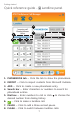
You can use the dial pad in the (Landline) panel to make
traditional landline calls. You can also add phonebook entry or
import phonebook entries from Microsoft Outlook
®
into the
software PHONEBOOK tab. The CALL LOG tab provides you with
information of all incoming, outgoing and missed calls.
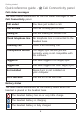
In the (Call Connectivity) panel, you can view the current
status of your Skype, Lync and landline calls. To make VoIP calls,
launch your Skype or Lync and dial the number from there. To
receive or end calls, you can simply press the button on the
headset, use the Skype or Lync program, or use the
corresponding buttons in the (Call Connectivity) panel.
You can check for software updates or configure various settings
in the (Settings) panel to best suit your needs.
1.
2.
Getting started
Microsoft
®
and Microsoft Outlook
®
are registered trademarks of
Microsoft Corporation.
The Skype name is a trademark of Skype.
Microsoft Lync is a registered trademark of Microsoft Corporation.