
User's Manual


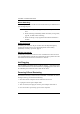


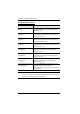
Table Of Contents
- EMC Information
- User Information
- Package Contents
- Contents
- About this Manual
- Conventions
- Product Information
- Chapter 1 Introduction
- Chapter 2 Hardware Setup
- Chapter 3 Basic Operation
- Chapter 4 Hotkey Operation
- Hotkey Port Switching
- Hotkey Setting Mode
- Invoking HSM
- Alternate HSM Invocation Keys
- Alternate Port Switching Keys
- Keyboard Operating Platform
- List Switch Settings
- USB Reset
- Hotkey Beeper Control
- Port Switching Keys
- Firmware Upgrade Mode
- Restore Default Settings
- Keyboard Emulation Control
- Mouse Emulation Control
- Mouse Port Switching
- Monitor Re-detection
- HSM Summary Table
- Chapter 5 Keyboard Emulation
- Chapter 6 The Firmware Upgrade Utility
- Appendix

21
Chapter 4
Hotkey Operation
The CS1942DP / CS1944DP provides an extensive, easy-to-use, Hotkey
function that makes it convenient to control and configure your KVM
installation from the keyboard. Hotkeys provide asynchronous (independent)
switching of the KVM, USB hub and audio focus. If you wish, you can give
one computer the KVM console focus, another the USB hub focus and the
other two the audio focus.
Hotkey Port Switching
All port switches begin with tapping the [Scroll Lock] key twice. The tables
below describe the actions that each combination performs.
Note: If using the Scroll Lock key conflicts with other programs running on
the computer, the [Ctrl] key can be used, instead. See Alternate Port
Switching Keys, page 25, for details.
Cycling Through the Ports
Hotkey Action
[Scroll Lock] [Scroll Lock]
[Enter]
Brings the KVM, USB hub, and audio focus from the
port that currently has the KVM focus to the next port on
the installation (1 to 2; 2 to 1 for the CS1942DP: 1 to 2; 2
to 3; 3 to 4; 4 to 1 for the CS1944DP).
[Scroll Lock] [Scroll Lock]
[K] [Enter]
Brings only the KVM focus from the port that currently
has it to the next port on the installation. The USB and
audio focus remain where they are.
[Scroll Lock] [Scroll Lock]
[U] [Enter]
Brings only the USB hub focus from the port that
currently has it to the next port on the installation. The
KVM and audio focus remain where they are.
[Scroll Lock] [Scroll Lock]
[S] [Enter]
Brings only the audio focus from the port that currently
has it to the next port on the installation. The KVM and
USB hub focus remain where they are.