MULTILANGUAGE QUICK START GUIDE ITALIANO 1.1 Contenuto della confezione..................................... 5 1.2 I LED frontali.......................................................... 5 1.3 Le porte posteriori................................................... 6 1.4 Cablaggio ................................................................ 7 1.5 Settaggi di Default .................................................. 8 1.6 Configurazione di IE............................................... 8 1.
MULTILANGUAGE QUICK START GUIDE DEUTSCH 1.1 Inhalt der Verpackung........................................... 79 1.2 Die frontalen LED................................................. 79 1.3 Die Hinterturen ..................................................... 80 1.4 Verdrahtung .......................................................... 81 1.5 Einstellung des Default ......................................... 81 1.6 Die IE Konfiguration ............................................ 82 1.
MULTILANGUAGE QUICK START GUIDE 4
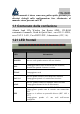
ITALIANO Questo manuale è inteso come una guida rapida, pertanto per ulteriori dettagli sulla configurazione fare riferimento al manuale esteso presente sul CD. 1.1 Contenuto della confezione Atlantis Land I-Fly Wireless Lan Router ADSL, CD-ROM contenente il manuale, Guida di Quick Start, cavo RJ-11 ADSL, cavo CAT-5 LAN , Cavo RS232-PS2 , Alimentatore (12V, 1A). 1.
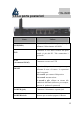
ITALIANO 1.3 Le porte posteriori Porte LINE(RJ11) PS2 Utilizzo Connettere il cavo RJ-11 a questa porta per effettuare l’allacciamento all’ADSL. Connettere il cavo RS232 fornito alla porta seriale (9 pin) del PC. Tale connessione è opzionale. LAN (4 connettori RJ-45) RESET Connettere con un cavo UTP Dopo che il dispositivo è acceso, premere per effettuare il reset o il restore.
ITALIANO 1.4 Cablaggio Anzitutto collegare il prodotto alla linea ADSL tramite il cavo RJ11 fornito in dotazione (nella porta LINE), poi collegare alle porte RJ45 i PC della Lan oppure eventuali Switch. E’ possibile accedere al Router tramite i diversi client wireless compatibili con lo standard IEEE802.11b. Infine collegare l’alimentatore al Router Wireless e poi presa elettrica.
ITALIANO 1.5 Settaggi di Default Prima di iniziare la configurazione dell’Atlantis I-Fly Wireless Lan Router ADSL è necessario conoscere quali siano i settaggi di default. Lasciando questi settaggi e impostando i PC come client DHCP (come da istruzioni seguenti) ed infine configurando la connessione all’ISP (che avrà comunicato tutti i parametri del caso) sarà possibile utilizzare l’Atlantis I-Fly Wireless Lan Router ADSL in pochissimo tempo.
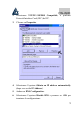
ITALIANO 2. Selezionare TCP/IP->NE2000 Compatible, o qualsiasi Network Interface Card (NIC) del PC. 3. Cliccare su Properties. 4. Selezionare l’opzione Obtain an IP address automatically (dopo aver scelto IP Address). 5. Andare su DNS Configuration. 6. Selezionare l’opzione Disable DNS e premere su OK per terminare la configurazione.
ITALIANO Riavviare il PC affinché i cambiamenti abbiano effetto.
ITALIANO Configurazione del PC in Windows NT4.0 1. Andare su Start/Settings/ Control Panel. Cliccare per due volte su Network e poi cliccare su Protocols . 2. Selezionare TCP/IP Protocol e poi cliccare su Properties. 3. Selezionare l’opzione Obtain an IP address from a DHCP server e premere OK.
ITALIANO 12
ITALIANO Configurazione del PC in Windows 2000 1. Andare su Start/Settings/Control Panel. Cliccare due volte su Network and Dial-up Connections. 2. Cliccare due volte su Local Area Connection. 3. In Local Area Connection Status cliccare Properties.
ITALIANO 4. Selezionare Internet Protocol (TCP/IP) e cliccare su Properties. 5. Selezionare l’opzione Obtain an IP address automatically e successivamente Obtain DNS server address automatically. 6. Premere su OK per terminare la configurazione.
ITALIANO 15
ITALIANO Configurazione del PC in Windows XP 1. Andare su Start e poi Control Panel. Cliccare due volte su Network (in Classic View) Connections. 2. Cliccare due volte su Local Area Connection. 3. In Local Area Connection Status cliccare Properties.
ITALIANO 4. Selezionare Internet Protocol (TCP/IP) e cliccare su Properties.
ITALIANO 5. Selezionare l’opzione Obtain an IP address automatically e successivamente Obtain DNS server address automatically. 6. Premere su OK per terminare la configurazione.
ITALIANO 19
ITALIANO 1.8 Configurazione Router Accedere col browser web al seguente indirizzo IP che di default è: 192.168.1.254, e premere il tasto invio. Utilizzare admin (come nome utente) e atlantis (come password). Premere OK per continuare.
ITALIANO cliccare sulla voce Wizard Setup, nella parte sinistra in alto per accedere alla configurazione assistita (Wizard Setup). PPPoE(RFC 2516)/ PPPoA (RFC 2364) PPPoE (PPP over Ethernet) è una connessione ADSL conosciuta come dial-up DSL. Al pari del PPPoA e’ stata concepita per integrare servizi a banda larga con un’attenzione particolare alla facilità di configurazione.
ITALIANO Cliccare su Next. Inserire Username e Password. Selezionare Obtain an IP Address Automatically o, nel caso l’abbonamento preveda un IP fisso, spuntare Static IP Address e digitare l’IP. Selezionare poi la modalità di connessione: • Connect on Demand ed il relativo Max Idle Timout (nel caso di abbonamenti a consumo) • Nailed-Up Connection (il Router è sempre connesso con l’ISP) In Network Address Translation scegliere la voce SUA Only.
ITALIANO Cliccare poi su Next. Nella schermata successiva verranno mostrati tutti i settagli relativi alla configurazione WAN e LAN. Cliccare su Save Settings, poi su Return Main Menu ed infine su Logout.
ITALIANO RFC1483/RFC1577 Questa configurazione è valida nel caso di abbonamento con 1 IP statico e dunque SUA(NAT) attivo (per la gestione della classe pubblica fare riferimento al manuale contenuto sul CD). Verificare che i parametri siano, nel caso di RFC1483, quelli in figura, ove non specificatamente indicato dall’ISP. Nel caso di RFC1577(IpoA) scegliere Encapsulation=ENET ENCAP e Multiplex=LLC. Cliccare su Next.
ITALIANO Nella schermata successiva verranno mostrati tutti i settagli relativi alla configurazione WAN e LAN. Cliccare su Save Settings, poi su Return Main Menu ed infine su Logout. L’I-Fly Wireless Lan Router ADSL si connetterà ad Internet ed immediatamente dai vari PC (anche quelli dotati di adattatori wireless) è possibile navigare. Ogni PC avrà già ricevuto (essendo client DHCP) l’indirizzo IP, la Subnet Mask, il Default Gateway e gli indirizzi IP dei DNS.
ITALIANO 26
ENGLISH For more detailed instructions on configuring and using the I-Fly Wireless Router ADSL, please refer to the online manual. Before beginning the configuration of the Router you have to know the parameters of your subscription ADSL. There are five ways ─ PPPoE, PPPoA, RFC1483 routed, IPoA, RFC1483 Bridge─ for the device to have a public IP address and then to access Internet. You have to check with your ISP about which way is adopted.
ENGLISH RFC1483 Bridged VPI/VCI RFC1483 Routed VPI/VCI VC-based / LLC-based multiplexing VC-based / LLC-based multiplexing IP address Subnet mask Default Gateway (IP address) IP address (DNS) IPoA VPI/VCI IP address Subnet mask Default Gateway (IP address) IP address (DNS) 1.1 Package contents Atlantis Land I-Fly Wireless Lan Router ADSL, CD-ROM with manual, Quick Start Guide, cable RJ-11 ADSL, cable CAT-5 LAN, RS232-PS2 cable, Power Adapter AC-DC (12V, 1A).
ENGLISH 1.2 The Front Panel LEDs LED POWER Meaning Lit green when power ON Lit green means that the apparatus has done correctly SYS the charging of the firmware and so it is ready. In case of problems is turned off. WLAN Flashing in green means data transfer. Lit green means the correct functioning of the wireless module.
ENGLISH 1.3 The Rear Ports Port 1 LINE (RJ11) 2 PS2 3 LAN (4 * RJ-45) Meaning Connect the supplied RJ-11 cable to this port when connecting to the ADSL/telephone network. Connect a RS-232 cable to this port when connecting to a PC’s RS-232 port (9-pin serial port). Connect an UTP Ethernet cable to one of the four LAN ports when connecting to a PC or an office/home network of 10Mbps or 100Mbps.
ENGLISH jack. 6 POWER Switch A Power ON/OFF switch 1.4 Cabling First you must connect the product to the ADSL line through the RJ11 cable you have in equipment (in the port LINE), then connect to the RJ45 ports the PCs of your Lan or others Switch. You can get to the Router through the different client wireless compatible with the IEEE802.11b standard. In the end connect the feeder to the Router Wireless and then to the socket.
ENGLISH external repeater hub, and have TCP/IP installed and configured to obtain an IP address through a DHCP server or a fixed IP address that must be in the same subnet of the I-Fly Wireless ADSL Router. The default IP address of the I-Fly Wireless ADSL Router is 192.168.1.254 and subnet mask is 255.255.255.0. The best and easy way is to configure the PC to get an IP address from the I-Fly Wireless ADSL Router. Please follow the steps below for PC’s network environment installation.
ENGLISH 1.7 TCP/IP Configuration Configuring PC (Windows 95/98/ME) 1. Go to Start / Settings / Control Panel. In the Control Panel, double-click on Network and choose the Configuration tab. 2. Select TCP / IP -> NE2000 Compatible, or the name of any Network Interface Card (NIC) in your PC. 3. Click Properties. 4. Select the IP Address tab. In this page, click the Obtain an IP address automatically radio button.
ENGLISH 5. Then select the DNS Configuration tab. 6. Select the Disable DNS radio button and click “OK” to finish the configuration.
ENGLISH 35
ENGLISH Configuring PC (Windows NT4.0) 1. Go to Start / Settings / Control Panel. In the Control Panel, double-click on Network and choose the Protocols tab. 2. Select TCP/IP Protocol and click Properties. 3. Select the Obtain an IP address from a DHCP server radio button and click OK.
ENGLISH 37
ENGLISH Configuring PC (Windows 2000) 1. Go to Start / Settings / Control Panel. In the Control Panel, double-click on Network and Dial-up Connections. 2. Double-click LAN Area Connection. 3. In the LAN Area Connection Status window, click Properties.
ENGLISH 4. Select Internet Protocol (TCP/IP) and click Properties.
ENGLISH 5. Select the Obtain an IP address automatically and the Obtain DNS server address automatically radio buttons.
ENGLISH 6. Click OK to finish the configuration.
ENGLISH Configuring PC (WindowsXP) 1. Go to Start / Control Panel (in Classic View). In the Control Panel, double-click on Network Connections. 2. Double-click Local Area Connection. 3. In the LAN Area Connection Status window, click Properties.
ENGLISH 4. Select Internet Protocol (TCP/IP) and click Properties.
ENGLISH 5. Select the Obtain an IP address automatically and the Obtain DNS server address automatically radio buttons.
ENGLISH 6.
ENGLISH 1.8 Browser configuration Open the web browser, enter the local port IP address of this I-Fly Wireless Lan Router ADSL, which default at 192.168.1.254, and click “Go” to get the login page. The default username is admin, password atlantis and click “OK” to continue. Now you will see ,as shown below ,the Main Menu: Click twice on Wizard Setup, up on the left to have access to the guided configuration (Wizard Setup).
ENGLISH PPPoE(RFC 2516)/ PPPoA (RFC 2364) PPPoE (PPP over Ethernet) is an ADSL connection known as dial-up DSL. As the PPPoA it has been created to integrate large band services paying a particular attention to an easy configuration. The user can obtain an high access speed and he can also share the same account with the ISP. No additional software are required.
ENGLISH Click on Next. Insert Username and Password. Select Obtain an IP Address Automatically or, in case the subscription has a fixed IP , choose Static IP Address and digit the IP. Select then connection modality: • Connect on Demand and its Max Idle Timeout (in case of consume subscriptions) • Nailed-Up Connection (the Router is always connected to the ISP) In Network Address Translation choose the voice SUA Only.
ENGLISH Click then on Next. In the next screen there will be shown all the settings related to the WAN and LAN configuration. Click on Save Settings, then on Return Main Menu and in the end on Logout.
ENGLISH RFC1483/RFC1577 This configuration is valid in case of a subscription with a static IP and active NAT (SUA) (for the managing of the public class turn to the CD handbook). Make sure that the parameters are, in case of RFC1483, the ones in the picture, if not specifically shown by the ISP. In case of RFC1577(IpoA) choose Encapsulation=ENET ENCAP and Multiplex=LLC. Click on Next.
ENGLISH In the next screen there will be shown all the settings related to the WAN and LAN configuration. Click on Save Settings, then on Return Main Menu and after on Logout. The I-Fly Wireless Lan Router ADSL will connect to the Internet and it is possible to navigate immediately from all the PCs(also from the ones endowed with wireless suiters). Every PC will have received (being client DHCP) the IP address, the Subnet Mask, the Default Gateway and the DNS IP addresses.
ENGLISH 52
FRANÇAIS Ce guide d’installation rapide vous permet d’installer et de configurer l’I-Fly Wireless Lan Router ADSL suivant des paramètres standards. Pour plus de précisions, tant sur les méthodes de configuration que sur le paramétrage avancé, reportez-vous au manuel sous format électronique (PDF) disponible sur le CD Rom fourni. Avant d’installer votre I-Fly Wireless Lan Router ADSL, vous devez savoir de quel type d'accès vous disposez et vous munir d'informations précises concernant votre compte internet.
FRANÇAIS RFC1483 Bridged VPI/VCI RFC1483 Routed VPI/VCI VC-based ou LLC-based multiplexing VC-based ou LLC-based multiplexing Adresse IP Masque de sous-réseau Adresse IP du Default Gateway Adresses IP des serveurs DNS IPoA VPI/VCI VC-based ou LLC-based multiplexing Adresse IP Masque de sous-réseau Adresse IP du Default Gateway Adresses IP des serveur DNS 1.
FRANÇAIS 1.2 Face avant LED POWER SYS WLAN LAN Signification Allumé quand l’I-Fly Wireless Router est sous tension Allumé vert fixé lorsque le dispositif a terminé correctement le chargement du firmware et il est donc près. Eteint en cas de problèmes. Clignotant vert pour indiquer transmission des données. Allumé vert fixé il indique le correct fonctionnement de module wireless.
FRANÇAIS 1.3 Face arrière Port LINE(RJ11) PS2 LAN (4 * RJ-45) RESET (remise à zéro) Usage Connectez le câble (fourni) RJ11 au filtre ADSL (optionnel) et enfin à la prise téléphonique Connectez le câble RS 232 à ce port Relier directement avec un câble Ethernet standard ou croisé aux PC ou à un port uplink (Hub/Switch). Dispositif allumé, presser pour effectuer le reset ou le restore.
FRANÇAIS 1.4 Câblage Après avoir terminé le câblage, raccordez l’alimentation pour mettre l’I-Fly Wireless Lan Router ADSL sous tension. Assurezvous que les LEDs sont correctement allumés. Connectez un câble réseau standard ou croisé pour relier le Router à un Hub/Switch ou aux PC. L’interface Wireless intégrée permet aux utilisateurs dotés d’interfaces wireless d’aller sur Internet en utilisant le protocole IEEE802.11b.
FRANÇAIS 1.6 Configuration du TCP/IP Configuration sous Windows 95/98/ME 1. Allez dans Panneau de Configuration. Double-cliquez sur Réseau.et enfin affichez l’onglet Configuration. 2. Sélectionnez le protocole TCP/IP -> NIC carte, ou quelconque carte réseau Ethernet dans le PC. 3. Cliquez sur Propriétés 4. Dans l’onglet Adresse IP Sélectionnez l’option « obtenir automatiquement une adresse IP ».
FRANÇAIS 59
FRANÇAIS 5. Sélectionnez l’onglet DNS. 6. Sélectionnez l’option Désactiver DNS et cliquez sur OK pour terminer la configuration. Vous devez redémarrer l’ordinateur pour que les changements prennent effet.
FRANÇAIS Configuration sous Windows NT4.0 1. Allez au Panneau de Configuration. Double-cliquez sur Réseau et enfin sélectionnez l’onglet Protocole . 2. Sélectionnez TCP/IP Protocol et après cliquez sur Propriétés. 3. Sélectionnez (votre carte Réseau) l’onglet Obtenir une adresse IP par un serveur DHCP et après cliquez sur OK pour terminer la configuration.
FRANÇAIS 62
FRANÇAIS Configuration sous Windows 2000 1. Allez au Panneau de Configuration. Double-cliquez sur Connexions Réseau et accès à distance.. 2. Double-cliquez sur connexion au réseau local.
FRANÇAIS 3. Dans Connexion au réseau local cliquez sur Propriétés.
FRANÇAIS 4. Sélectionnez Internet Protocol (TCP/IP) et cliquez sur Propriétés.
FRANÇAIS 5. Sous l’onglet Général, sélectionnez l’onglet Obtenir une adresse IP automatiquement et après Obtenir les adresses des serveurs DNS automatiquement 6.
FRANÇAIS Configuration sous Windows XP 1. Allez sur Panneau de Configuration. Double-cliquez sur Accès Réseau 2. Double-cliquez sur Connexion au Réseau local. 3. Cliquez Propriétés.
FRANÇAIS 68
FRANÇAIS 4. Sélectionnez Internet Protocol (TCP/IP) et cliquez sur Properties.
FRANÇAIS 5. Sélectionnez Obtenir une adresse IP automatiquement et après Obtenir les adresses des serveurs DNS automatiquement. 6. Cliquez sur OK pour terminer la configuration.
FRANÇAIS 1.7 Vérification Pour vérifier le succès de la configuration (après avoir redémarré le PC, opération nécessaire sous Win98, SE, ME) utiliser le PING. Dans la fenêtre Dos écrivez: PING 192.168.1.254 Si le message suivant apparaît: Pinging 192.168.1.254 with 32 bytes of date: Reply from 192.168.1.254: bytes=32 times <10ms TTL=64 Reply from 192.168.1.254: bytes=32 times <10ms TTL=64 Reply from 192.168.1.254: bytes=32 times <10ms TTL=64 Vous pouvez procéder en allant au point suivant (1.
FRANÇAIS 1.8 Configuration avec le Browser Pour accéder à l’interface Web, lancez un navigateur Internet et tapez dans la barre adresse l’IP suivante : http://192.168.1.254 Un mot de passe vous est demandé, pour la première connexion. User = admin Password = atlantis et appuyez sur OK pour aller dans la configuration.
FRANÇAIS Cliquez sur la poste Wizard Setup, dans la partie gauchère en haut pour accéder à la configuration (Wizard Setup). En suivant les indications ci-dessous il est possible de rendre opérationnel le I-Fly Wireless Lan Router ADSL en peu de temps à condition d'utiliser les PC du réseau comme client DHCP. Pour une configuration personnalisée du réseau et du Router faire référence au manuel complet dans le CD Rom. Vous trouverez dans le tableau ci-dessous les valeurs possibles de VPI/VCI.
FRANÇAIS PPPoE Routed /PPPoA Routed Le protocole PPPoE (Point to Point Protocol over Ethernet) est l’une des méthodes utilisées en France. Il a été conçu (comme le PPPoA) pour compléter le service ADSL avec une attention spéciale pour facilité la configuration. L'utilisateur peut bénéficier d'une grande vitesse d'accès sans changer la façon de fonctionnement et en même temps partager entre tous les utilisateurs de votre entreprise un compte Internet unique (avec le FAI).
FRANÇAIS Cliquez sur Next. Introduisez Username et Password. Sélectionnez Obtain an IP Address Automatically ou, si l’abonnement prévoit un IP fixé, choisissez Static IP Address et introduisez l’IP. Sélectionnez puis la modalité de connexion: • Connect on Demand et le relatif Max Idle Timout (dans le cas d’abonnement à consommation) • Nailed-Up Connection (le Router est toujours connecté avec l’ISP) En Network Address Translation choisissez SUA Only. Cliquez puis sur Next.
FRANÇAIS Dans la prochaine image à vidéo nous pourrons voir la configuration WAN e LAN. Cliquez sur Save Settings, puis sur Return Main Menu et enfin sur Logout. RFC1483 routed / IpoA routed Cette configuration est valide seulement pour abonnements avec un IP statique et donc SUA(NAT) actif (pour la gestion de la classe publique adressez-vous au manuel contenu dans le CD). Vérifiez que les paramètres seraient, dans le cas de RFC1483, ceux dans l’image, si rien n’est spécifiquement indiqué par l’ISP.
FRANÇAIS Cliquez sur Next. Introduisez puis l’adresse IP publique statique donné par l’ISP (dans le cas de RFC 1577, introduisez même la subnet mask et le default gateway). En Network Address Translation choisissez SUA Only. Dans la prochaine image à vidéo nous pourrons voir la configuration WAN e LAN. Cliquez sur Save Settings, puis sur Return Main Menu et enfin sur Logout.
FRANÇAIS 78
DEUTSCH Das ist ein Handbuch,das wie eine kurze Anleitung ausgedacht wird, deshalb nehmen Sie Bezug auf das vollig Hanbuch, das im CD ist,wenn Sie weitere Einzelheiten uber die Konfiguration brauchen. 1.1 Inhalt der Verpackung Atlantis Land I-Fly Wireless Lan Router ADSL, CD-ROM,der das Handbuch enthalt, Quick Start Anleitung, Kabel RJ-11 ADSL, Kabel CAT-5 LAN , KabelRS232-PS2 , Speiseleitung (12V, 1A). 1.
DEUTSCH 1.3 Die Hinterturen Turen 1 LINE(RJ11) 2 PS2 3 LAN 1-4 4 RESET 5 POWER (jack) Benutzung Verbinden Sie den RJ-11 Kabel zu diesem Tur,um den Anschluss zum ADSL durchzufuhren. Verbinden Sie den gegebenen Kabel RS232 zur (9 pin) Tur des PC. Diese Verbindung ist freigestellt. Verbinden Sie mit einem UTP Kabel. Nachdem die Vorrichtung eingeschaltet ist,drucken Sie auf die Taste,um der reset oder der restore zu machen.
DEUTSCH 1.4 Verdrahtung Zunächst müssen Sie das Produkt dem ADSL Linie durch das gegebenen RJ11 Kabel (in die LINE Tur), verbinden, dann verbinden Sie die PC Ihrer Lan oder die Switch den Türen RJ45. Sie können den Router erreichen, durch die verschiedene client wireless, die kompatibel mit dem Standard IEEE802.11b sind. Schliesslich verbinden Sie der Speiser dem Router Wireless und dann der Steckdose.
• • • DEUTSCH Adresse IP (192.168.1.254), Subnet Mask (255.255.255.0) DHCP Server staatlich SSSID= wlan-ap, Channel=6, WEP=unfähig 1.6 Die IE Konfiguration Jeztz ist es notwendig,IE einzufuhren, in Menu Instrument zu gehen, dann der tab Verbindungen wahlen und eine der folgende Stimmen zu wahlen: • Benutzen Sie nie remote Verbindung • Benutzen Sie remote Verbindung, wenn es keine netz Verbindung disponibel ist. 1.7 Konfiguration des PC Konfiguration des PC in Windows 95/98/ME 1.
DEUTSCH 4. Wahlen Sie die Option Obtain an IP address automatically (nachdem Sie IP Address gewahlt haben). 5. Gehen Sie auf DNS Configuration. 6. Wahlen Sie die Option Disable DNS und drucken Sie auf OK, um die Konfiguration zu enden.
DEUTSCH 84
DEUTSCH Leiten Sie wieder den PC,damit die Anderung geschehen.
DEUTSCH Konfiguration des PC in Windows NT4.0 1. Gehen Sie auf Start/Settings/ Control Panel. Drucken Sie zweimal auf Network und dann auf Protocols . 2. Wahlen Sie TCP/IP Protocol dann drucken Sie auf Properties. 3. Wahlen Sie den Option Obtain an IP address from a DHCP server und drucken Sie auf OK.
DEUTSCH 87
DEUTSCH Konfiguration des PC in Windows 2000 1. Gehen Sie auf Start/Settings/Control Panel. Drucken Sie zweimal auf Network and Dial-up Connections. 2. Drucken Sie zweimal auf Local Area Connection. 3. In Local Area Connection Status drucken Sie auf Properties.
DEUTSCH 4. Wahlen Sie Internet Protocol (TCP/IP) und drucken Sie auf Properties.
DEUTSCH 5. Wahlen Sie die Option Obtain an IP address automaticall und spater Obtain DNS server address automatically. 6. Drucken Sie auf OK,um die Konfiguration zu enden.
DEUTSCH 91
DEUTSCH Konfiguration des PC in Windows XP 1. Gehen Sie auf Start dann auf Control Panel. Drucken Sie zweimal auf Network (in Classic View) Connections. 2. Drucken Sie zweimal auf Local Area Connection. 3. In Local Area Connection Status drucken Sie auf Properties.
DEUTSCH 4. Wahlen Sie Internet Protocol (TCP/IP) und drucken Sie auf Properties.
DEUTSCH 5. Wahlen Sie die Option Obtain an IP address automatically und spater Obtain DNS server address automatically . 6. Drucken Sie auf OK,um die Konfiguration zu enden..
DEUTSCH 95
DEUTSCH 1.8 Konfiguration des Router Mit dem browser web, kommen Sie in den folgenden IP Adresse (wo man den URL steckt)dessen default ist: 192.168.1.254,und drucken Sie die Taste Ubersendung. Benutzen Sie admin (als user name) und atlantis (als password). Drucken Sie OK, um weiter zu gehen.
DEUTSCH drücken Sie auf die Stimme Wizard Setup, links oben, um die betreute Konfiguration (Wizard Setup) zu erreichen. PPPoE(RFC 2516)/ PPPoA (RFC 2364) PPPoE (PPP over Ethernet) ist eine ADSL Verbindung, die als dial-up DSL bekannt ist. Wie die PPPoA, sie ist gedacht worden, um die Breitbande Dienste zu ergänzen, mit eine besondere Aufmerksam der Leichtigkeit der Konfiguration.
DEUTSCH Drücken Sie auf Next. Schreiben Sie Username und Password. Wählen Sie Obtain an IP Address Automatically oder, wenn das Abonnement eine feste IP vorsieht, wählen Sie Static IP Address und schreiben Sie die IP. Wählen Sie dann die Verbindungsmodalität: • Connect on Demand und den zugehörigen Max Idle Timout (in dem Fall den Verbrauchsabonnement) • Nailed-Up Connection (der Router ist immer mit dem ISP verbunden) In Network Address Translation wählen Sie die Stimme SUA Only.
DEUTSCH Drücken Sie dann auf Next. In den folgenden Schirm, werden alle Einstellungen der WAN und LAN Konfiguration gezeigt werden. Drücken Sie auf Save Settings, dann auf Return Main Menu und endlich auf Logout.
DEUTSCH RFC1483 routed / IpoA routed Diese Konfiguration ist gültig, wenn Sie ein Abonnement mit 1 staatischen haben, und also SUA (NAT) aktiv (Für die Leitung der allgemeinen Klasse, nehmen Sie auf das Handbuch in der CD Bezug). Kontrollieren Sie, dass die Parameter, in dem Fall RFC1483, die im Bild, sein, wenn es nicht eingehend vom ISP gezeigt ist. In dem Fall RFC1577(IpoA) wählen Sie Encapsulation=ENET ENCAP und Multiplex=LLC. Drücken Sie auf Next.
DEUTSCH Schreiben Sie dann die allgemeine staatische IP Adresse, die vom ISP gegeben Wird (in dem Fall RFC 1577, führen Sie auch die subnet mask und default gateway ein). In Network Address Translation wählen Sie die Stimme SUA Only. In den folgenden Schirm werden alle Einstellungen der WAN und LAN Konfiguration gezeigt werden. Drücken Sie auf Save Settings, dann auf Return Main Menu und endlich auf Logout.
DEUTSCH 102
WARRANTY/GARANZIA/GARANTIE WARRANTY CERTIFICATE CONDIZIONI DI GARANZIA CERTIFICAT DE GARANTIE 103
WARRANTY/GARANZIA/GARANTIE FAST SWAP WARRANTY CERTIFICATE We thank you for your decision to have bought an ATLANTIS LAND® product . This product has got a particular form of Facilitated Guarantee which lasts for 36 months. ATLANTIS LAND® believes that those products are absolutely necessary for company production and for that they must have a very fast and reliable assistance .
WARRANTY/GARANZIA/GARANTIE 5. 6. 7. 8. 9. 10. 11. 12. 13. 14. attached to the product or available on the web site www.atlantis-land.com (Support\Warranty page) This form must be accompanied by a valid proof of purchase (Sale receipt or Invoice ), this clause is not compulsory if the costumer had previously registered his purchase on the ATLANTIS LAND® web site. The non conformity to one of the previous points 5 and 6 makes the Guarantee irrecoverable by the costumer.
WARRANTY/GARANZIA/GARANTIE 15. All the elements that undergo wear and tear as accumulator’s batteries , batteries themselves , fuses and bulbs even when furnished , cables for the connection or the feeding and connectors are not included in the Guarantee. 16. Exactly only for the line of UPS products the batteries that are furnished with the product itself are in Guarantee for 12 months. 17. The external feeders, of every kind of apparatus, are covered by a 12months Guarantee. 18.
WARRANTY/GARANZIA/GARANTIE 22. The cancellation from this Data Bank will take place only after the payment requested. 23. The Guarantee is provided only by ATLANTIS LAND® s.p.a. to its Assistance Center .Address : Via De Gasperi, 122 – 20017 – Mazzo di Rho (MI) – Phone: 02-93907634. 24. Any controversy will be up to the Foro di Milano. Important! See the web site www.atlantis-land.
WARRANTY/GARANZIA/GARANTIE DEMAND OF ASSISTANCE FORM Fill all the blanks, attach always a copy of the proof of purchase (Sale Receipt or Invoice), and add it all to the product for which you are asking for assistance.
WARRANTY/GARANZIA/GARANTIE I agree with this with all the clauses of Guarantee, paying particular attention to the restrictive ones, shown by ATLANTIS LAND® for thhis product. Date____________Signature______________________________ Consent for the treatment of information according to law 675/96 art. 11and 12 PRIVACY TUTELAGE.
WARRANTY/GARANZIA/GARANTIE CERTIFICATO DI GARANZIA FAST SWAP La ringraziamo della Sua decisione di aver acquistato un prodotto ATLANTIS LAND®. Questo prodotto usufruisce di una particolare forma di Garanzia Agevolata per un periodo di 36 mesi. ATLANTIS LAND® ritiene infatti che questi prodotti siano assolutamente vitali per la produttività aziendale e quindi vadano assistiti nel minor tempo possibile.
WARRANTY/GARANZIA/GARANTIE 4. 5. 6. 7. 8. 9. 10. 11. 12. 13. 14. Per attivare la procedura di Garanzia Agevolata il Consumatore dovrà segnalare il difetto (tramite Fax, E-Mail o Telefono) al Centro Assistenza ATLANTIS LAND®, che provvederà a fornire un numero di RMA previa verifica dell’effettivo malfunzionamento. Tale numero di RMA dovrà essere riportato, insieme a tutti gli altri dati richiesti, sull’apposito modulo, allegato al prodotto o disponibile sul sito www.atlantis-land.
WARRANTY/GARANZIA/GARANTIE 15. 16. 17. 18. 19. 20. 21. 22. alla quale l’apparato sia collegato, così come guasti causati da scariche elettriche di ogni tipo (fulmini, sovratensioni, scariche elettrostatiche o induttive). Sono infine esclusi dalla Garanzia i danni provocati dal fuoco o da infiltrazione di liquidi.
WARRANTY/GARANZIA/GARANTIE del mancato pagamento. Inoltre il nominativo del Consumatore stesso verrà riportato in una Banca Dati di proprietà ATLANTIS LAND®, che da quel momento non riconoscerà più alcuna garanzia al Consumatore in oggetto quale soggetto moroso, ma procederà, per ogni eventuale ulteriore situazione, come da Garanzia Standard. La cancellazione da questa Banca Dati potrà avvenire solo ed esclusivamente a seguito del pagamento dovuto. 23.
WARRANTY/GARANZIA/GARANTIE MODULO RICHIESTA ASSISTENZA Compilare in ogni sua parte, allegare sempre una copia della prova di acquisto valido (Scontrino Fiscale o Fattura), ed unire il tutto al prodotto per il quale si richiede l’assistenza.
WARRANTY/GARANZIA/GARANTIE Codice Fiscale o Partita IVA ______________________________ da indicare sempre Accetto con la presente tutte le clausole, con particolare attenzione a quelle restrittive, di Garanzia esposte da ATLANTIS LAND® per il prodotto in oggetto. Data__________Firma per Accettazione_____________________ Consenso al trattamento dei dati ai sensi degli art. 11 e 20 L. 675/96 TUTELA DELLA PRIVACY.
WARRANTY/GARANZIA/GARANTIE CERTIFICAT DE GARANTIE FAST SWAP Nous vous félicitons et vous remercions d’avoir acheté un produit ATLANTIS LAND. Ces produits bénéficient d’une forme particulière de Garantie “HOT SWAP”pendant 36 mois. ATLANTIS LAND pense en effet que ces produits sont absolument vitaux pour votre productivité, et qu’il faut donc les remplacer le plus rapidement possible.
WARRANTY/GARANZIA/GARANTIE 3. 4. 5. 6. 7. 8. 9. 10. 11. 12. 13. Le remplacement sera gratuit pour le Consommateur. Pour activer la procédure de Garantie le Consommateur doit signaler le défaut (par fax, e mail ou téléphone) au Centre Assistance ATLANTIS LAND, qui lui fournira un numéro de RMA, après vérification du produit en panne. Ce numéro de RMA devra être indiqué, avec les autres renseignements nécessaires, dans la fiche jointe au produit, disponible également sur notre site internet www.
WARRANTY/GARANZIA/GARANTIE 14. 15. 16. 17. 18. 19. 20. Les dommages causés par un branchements de l’appareil à des tensions différentes de celles indiquées, ou à des soudains changements de tensions du réseau d’alimentation, ainsi que les dommages causées par toute décharge électrique (foudres, surtensions, décharges électrostatiques ou inductives) sont exclus de la Garantie Les dommages causés par feu ou infiltration de liquides ne bénéficient pas de la Garantie.
WARRANTY/GARANZIA/GARANTIE 21. 22. Standard. L’effacement des données de cette banque de données ne pourra avoir lieu qu’après le payement dû. La Garantie est fournie exclusivement par ATLANTIS LAND s.p.a. au Centre Assistance Via De Gasperi 122 – 20017 Mazzo di Rho (MI) telefone 39-02-9390 7634. En cas de litige, Le tribunal de Milan sera seul compétent. Important : Voyez le site Web www.atlantis-land.com au sujet de la mise à jour des clauses de garantie.
WARRANTY/GARANZIA/GARANTIE FICHE DE DEMANDE D’ASSISTANCE Remplissez cette fiche et joignez y une copie de la preuve d’achat (ticket de caisse ou facture), du produit pour lequel vous demandez une assistance.
WARRANTY/GARANZIA/GARANTIE Rue___________________________________________n°.:____ SIRET ou numéro de TVA Obligatoire J’accepte toutes les clauses, avec une attention particulière aux clauses restrictives, de Garanties indiquées par ATLANTIS LAND pour ce produit.