
AL329 User Manual V1.00


11
Vehicle Info Show Set
The default setting is Set On.
This function allows you to turn on/off the Vehicle Info display when entering
the test vehicle through OBDII function.
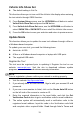
1) From System Setup screen, use the UP/DOWN scroll button to select
Vehicle Info Show Set and press the OK button.
2) From Vehicle Info Show Set menu, use the UP/DOWN scroll button to
select SHOW ON or SHOW OFF to turn on/off the Vehicle Info screen.
3) Press the OK button to save your selection and return to previous menu.
Update Mode
This function allows you to update the scan tool software through a Mac or
a Windows-based computer.
To update your scan tool, you need the following items.
AutoLink
AL329
A Mac or a Windows-based computer or laptop with USB ports
The supplied USB cable
Register the Tool
The tool must be registered prior to updating it. Register the tool on our
website: www.autel.com. Visit the site to download software update
programs, research tools and retrieve warranty information.
NOTE
Prior to registration, please confirm your network is working properly.
1. Visit the website http://pro.autel.com.
2. If you already have an Autel account, Sign In with your account ID and
password.
3. If you are a new member to Autel, click on the Create Autel ID button
on the left side of the screen to create an ID.
4. Enter the required information in the input fields, and click the Get
Verification Code button to get a verification code for email validation.
5. The online system will automatically send a verification code to the
registered email address. Input the code in the Verification code field
and complete other required fields. Read through Autel’s Terms and