
User`s manual


E-25
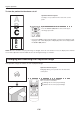
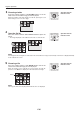
When 90-deg rotation is chosen
Regular Operation
This section describes the use of direct operation using the projector and remote control buttons.
PleaseseetheitemsonPageE-36"MethodofMenuOperation"andPageE-38"MenuDescription"forinformation
about operation using the menu.
Select the Input
OperationwiththeProjector
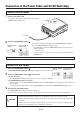
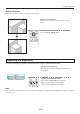
Select the input using the INPUT buttons.
The input switches in the order OHP → PC → VID-
EO or OHP →VIDEO(
Component
)→ VIDEO each
time the button is pressed.
OperationwiththeRemoteControl
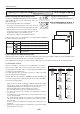
Select the input using the INPUT buttons.
Whentheprojector’s poweris turned on,oneoftheinputselectionicons([OHP, PCorVIDEO]or[OHP,VIDEO
(Component)orVIDEO])isdisplayed.
(WhenthePCinputissettoRGB)
(WhenthePCinputissettocomponent)
* For instructions on selecting the PC input, see page E-38.
NOTE:
• Theinputmodeatstartingtimewillbethesameasitwasthelasttimethe
projector was switched off.
• Whentheiconisdisplayed,eithertheleftorrightkeypermitsinputswitch-
ing.
Changing the Orientation of the Projection Image
Effective Only with OHP Input
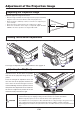
Thischangestheorientationofthecurrentlyprojectedimageto0°andto90°.
The changed video is displayed according to the lateral axis of the screen.
OperationwiththeProjector
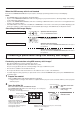
Press the PORTRAIT button.
OperationwiththeRemoteControl
Press the ROTATION button.
• Pressing the ROTATION button displays the rotation selection icon. With
changeover of the video, the display disappears.
OHP PC VIDEO
OHP VIDEO
(
Component
)
VIDEO
ON/STANDBY
LAMP/COVER
TEMP
FREEZE OFF
FREEZE/CAPTURE
PORTRAIT
INPUT
ON/STANDBY
LAMP/COVER
TEMP
FREEZE OFF
FREEZE/CAPTURE
INPUT
PORTRAIT