
EmergeTM ECMS2000U Digital Workstation Extender Installer/User Guide


Table Of Contents
- Avocent EmergeTM ECMS2000U Digital Workstation Extender
- List of Figures
- List of Tables
- Product Overview
- Installation
- Operations
- Overview
- Accessing the System
- The Serial Menu
- Configuring Network Settings
- Detecting a Transmitter IP Address
- Authentication
- Flash Upgrading your Emerge Digital Workstation Extender
- Restoring Factory Default Settings
- Resetting the Avocent Emerge ECMS2000U Extender
- Viewing System Information
- Configuring Video Input Settings
- Session Retry Settings
- Audio Performance Settings
- Appendices
Chapter 3: Operations 29
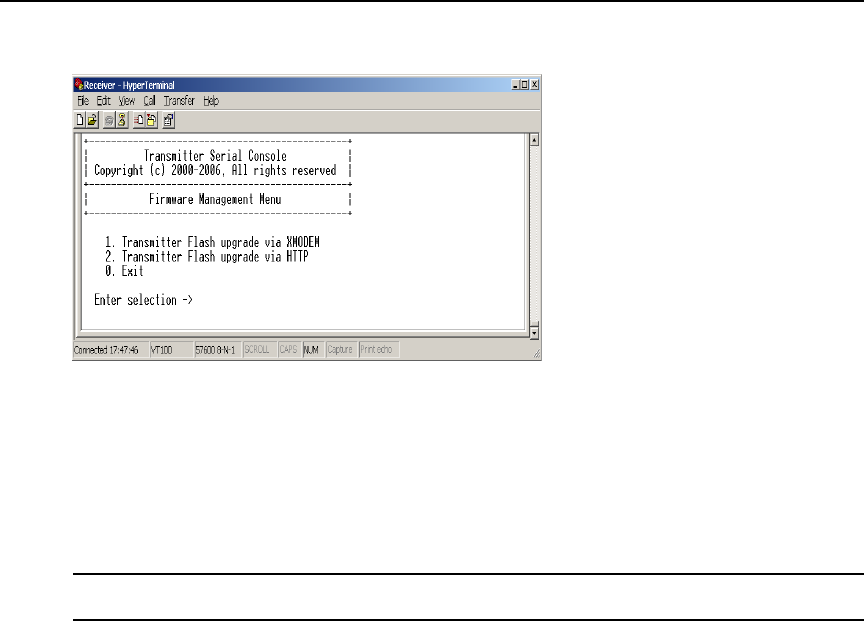
5. Choose Firmware Management. The Firmware Management Menu will appear.
Figure 3.18: Transmitter Firmware Management Menu
6. Choose Transmitter Flash Upgrade Via XMODEM.
7. Specify the location of the upgrade file and initiate the file transfer.
8. When the transfer has completed, a message will display stating “Firmware update successful.
Resetting Appliance...” During reset the Transmitter will drop the connection to the Receiver.
A second system message will appear that states “Connection to the Transmitter is lost”. You
will be automatically returned to the Appliance Selection Menu
screen.
NOTE: If the Transmitter determines that the upgrade file is invalid, the Transmitter cancels the upgrade and
maintains the previous firmware version. A message displays indicating that the upgrade has failed.
To Flash upgrade your Transmitter using HTTP:
1. Download the Transmitter upgrade file from Avocent.
2. Activate the serial menu as described in Accessing the serial menu on page 14.
3. Choose option 2 to access the Transmitter menu. If the password option is enabled, you will be
prompted for a password. See
Authentication on page 24.
4. Type the password and press Enter. The Transmitter Main Menu will appear.