8/16/32 PS/2 KVM over IP switch 8 port / 16 port / 32 port PS/2 IP-KVM SWITCH USER’S MANUAL Rev 1.
8/16/32 PS/2 KVM over IP switch TABLE OF CONTENTS 1. THE QUICK INSTALLATION GUIDE 2. INTRODUCTION 2.1 2.2 2.3 2.4 2.5 2.6 2.7 2.8 When the server is up and running When the sever is dead Features Package contents Technical specifications System requirement Cable diagrams Product Details 3. HARDWARE INSTALLATION 3.1 3.2 Operation Overview Connecting PS/2 IP-KVM SWITCH to the host system 4. CONFIGURATION 4.1 Initial Configuration 4.1.1 Initial configuration via DHCP server 4.1.
8/16/32 PS/2 KVM over IP switch 6. MENU OPTIONS 6.1 Remote Control 6.1.1 KVM Console 6.1.2 Remote Power 6.1.3 Telnet Console 6.2 User Management 6.2.1 Change Password 6.2.2 Users And Groups 6.3 KVM Settings 6.3.1 6.3.2 6.3.3 6.3.4 6.4 Device Settings 6.4.1 6.4.2 6.4.3 6.4.4 6.4.5 6.4.6 6.4.7 6.5 User Console Power Control Keyboard/Mouse Video Network Dynamic DNS Security Certificate Serial Port Date And Time Event Log Maintenance 6.5.1 6.5.2 6.5.3 6.5.
8/16/32 PS/2 KVM over IP switch 1. The Quick Installation Guide Installation PS/2 IP-KVM switch redirects local keyboard, mouse and video data to a remote administration console. All data is transmitted via IP. PS/2 IP-KVM switch can be used in a multi administrator and multi server environment as well. Besides, PS/2 IP-KVM switch is a KVM switch, which can also be used with a local console.
8/16/32 PS/2 KVM over IP switch Table 1.2: Serial parameters Use a terminal software (e.g. hyper term or minicom) to connect to PS/2 IP-KVM switch. Reset PS/2 IP-KVM switch and immediately press . You will see some device information and a ’=>’ prompt. Enter the command ’config’ and press . After waiting a few moments you may configure IP auto configuration, IP address, net mask and default gateway. Pressing without entering values does not change settings.
8/16/32 PS/2 KVM over IP switch default settings for all video modes or only the current one.
8/16/32 PS/2 KVM over IP switch 2. Introduction Thank you for purchasing PS/2 IP-KVM switch. PS/2 IP-KVM switch can save your MONEY, TIME, SPACE, EQUIPMENT and POWER. PS/2 IP-KVM switch defines a new class of remote KVM access devices. PS/2 IP-KVM switch combines an 8/16/32-port KVM switch with digital remote KVM access via IP networks and comprehensive system management. PS/2 IP-KVM switch provides convenient; remote KVM access and control via LAN or Internet.
/16/32 PS/2 KVM over IP switch Type of failure Detected by Hard disk failure Console screen, CMOS set-up information Power cable detached, power Server remains in power on state after power on supply failure command has been given. CPU Controller, main board failure. Power supply is on, but there is no video output. CPU fan failure By server specific management software RAM failure Boot-Sequence on boot console Table 2.1:Host system failures and how they are detected. 2.
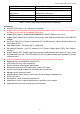
8/16/32 PS/2 KVM over IP switch 2.4 Package contents Model No.: 8 port PS/2 IP-KVM switch Base unit- 8 port PS/2 IP-KVM switch 1 PCS User’s manual 1 PCS Installation software and User Manual on CD-ROM 1 PCS AC to DC Power Adapter 1 PCS Rack Mount Kit 1 SET Daisy Chain Cable 1 PCS 3-in-one cables (One HDDB 15-pin male to one HDDB Optional 15-pin and two Mini Din 6-pin PS2 cables) Null modem cable 1 PCS Model No.
8/16/32 PS/2 KVM over IP switch 2.5 Technical specifications Model No.
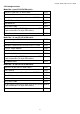
8/16/32 PS/2 KVM over IP switch 2.6 System requirement Model No. Local console side Network Side 8 ports PS/2 IP-KVM switch One VGA Monitor One Keyboard One Mouse 10/100Mbps Ethernet or Modem Remote Console side One computer Computer side 8 PCs with 8 3-in-one cables (One HDDB 15-pin male to one HDDB 15-pin and two Mini Din 6-pin PS2 cables) Model No.
8/16/32 PS/2 KVM over IP switch VGA Cable: HDB15 pin Male to Male AT to PS/2 keyboard adapter: (Optional) Din 5 pin Male to Mini Din 6 pin Female PS/2 to DB9 adapter (Optional) Mini Din 6 pin Female to DB 9 pin Female CAT5/5E/6 Straight Through UTP/STP Cable: 8P8C 2.
8/16/32 PS/2 KVM over IP switch 13
8/16/32 PS/2 KVM over IP switch 3. Hardware installation 3.1 Operation Overview Figure 3.1 shows the connections of PS/2 IP-KVM switch to its host, to peripheral devices, to the power source and to the local area network. 8/16 Servers IP Network Administrator 8/16 PS/2 KVM Figure 3.1: PS/2 IP-KVM switch usage scenario PS/2 IP-KVM switch redirects local keyboard, mouse, and video data to a remote administration console. All data is transmitted via IP.
8/16/32 PS/2 KVM over IP switch Step 2 (Local console) Connect the monitor to the KVM Switch. Using the attached cable, or the one included with your monitor, connect it to the HDDB15-pin female port on the back of the KVM unit labeled with the monitor symbol at the CONSOLE connector. Step 3 Connect the keyboard to the KVM Switch. If you have an AT type keyboard, you will need an AT to PS/2 adapter. Step 4 Connect the mouse to the KVM Switch. Step 5 Each PC port connector is HDDB15-pin type.
8/16/32 PS/2 KVM over IP switch Step 6 (Optional) If using a serial mouse cable (optional), connect one end to a DB-9 serial port on the computer, and the other Mini Din 6 pin end to the mouse cable connector. If you need Serial DB-9 to PS/2 Mini Din 6 pin adapter, please contact your supplier. The Rear Side of Step 7 Double-check all of the connections. You can check the color of keyboard and mouse connector to make sure the keyboard and mouse cables go to the correct ports.
8/16/32 PS/2 KVM over IP switch For 10BASE-T Ethernet networks, the Fast Ethernet adapter uses Category 3, 4, or 5 UTP cable. To establish a 10 Mbps connection, the cable must be connected to a 10BASE-T hub. ¾ Make sure that the cable is wired appropriately for a standard 10BASE-T adapter. ¾ Align the RJ-45 plug with the notch on the adapter’s connector and insert it into the adapter’s connector. 100 Mbps Connection For 100BASE-TX Fast Ethernet networks, PS/2 IP-KVM switch supports Category 5 UTP cabling.
8/16/32 PS/2 KVM over IP switch 4. Configuration 4.1 Initial Configuration The PS/2 IP-KVM switch's communication interfaces are all based on TCP/IP. It comes pre-configured with the IP configuration listed in Table 4-1. Parameter IP auto configuration IP-Address Net-mask Default-Gateway Value DHCP 255.255.255.0 none Table 4-1. Initial network configuration Warning If the DHCP connection fails on boot up, the PS/2 IP-KVM switch will not have an IP address.
8/16/32 PS/2 KVM over IP switch Figure4-1. PS/2 IP-KVM switch setup tool On the upper left corner, the MAC address of the PS/2 IP-KVM switch is displayed. To detect the MAC address, manually, press the button “Refresh Devices”. The displayed MAC address is the same MAC address printed on the white sticker placed on the back of the PS/2 IP-KVM switch. If the PS/2 IP-KVM switch is connected via USB, it is classified as an USB device and an appropriate drive letter is chosen for this device.
8/16/32 PS/2 KVM over IP switch 4.1.2 Initial configuration via serial console Using a serial terminal, the PS/2 IP-KVM switch has a serial line interface (rear side). This connector is compliant with the RS 232 serial line standard. The serial line has to be configured with the parameters given in Table 4-2. When configuring with a serial terminal, reset the PS/2 IP-KVM switch and immediately press the “ESC” key. You will see some device information, and a “=>” prompt.
8/16/32 PS/2 KVM over IP switch 4.1.3.1 PS/2 IP-KVM switch keyboard settings The PS/2 IP-KVM switch settings for the host's keyboard type have to be correct in order to make the remote keyboard work properly. Check the settings in the PS/2 IP-KVM switch front-end. See 6.3.3 for details. 4.1.3.2 Remote Mouse Settings A common problem with KVM devices is the synchronization between the local and remote mouse cursors.
8/16/32 PS/2 KVM over IP switch While the PS/2 IP-KVM switch works with accelerated mice and is able to synchronize the local with the remote mouse pointer, there are the following limitations, which may prevent this synchronization from working properly: Special Mouse Driver There are mouse drivers which influence the synchronization process and lead to desynchronized mouse pointers.
8/16/32 PS/2 KVM over IP switch 5. Usage 5.1 Prerequisites The PS/2 IP-KVM switch features an embedded operating system and applications offering a variety of standardized interfaces. This chapter will describe both these interfaces, and the way to use them in a more detailed manner. The interfaces are accessed using the TCP/IP protocol family, thus they can be accessed using the built-in Ethernet adapter.
8/16/32 PS/2 KVM over IP switch Figure 5-1. The Internet Explorer displaying the encryption key length Newer web browsers do support strong encryption on default. 5.2 Login into the PS/2 IP-KVM switch and logout 5.2.1 Login into the PS/2 IP-KVM switch Launch your web browser. Direct it to the address of your PS/2 IP-KVM switch, which you configured during the installation process.
8/16/32 PS/2 KVM over IP switch Warning The user “super” is not allowed to login via the serial interface of the PS/2 IP-KVM switch. Warning Please make sure to change the super user password immediately after you have installed and accessed your PS/2 IP-KVM switch for the first time.
8/16/32 PS/2 KVM over IP switch Open the PS/2 IP-KVM switch remote console. Exit from the PS/2 IP-KVM switch front end. Table 5-2. Buttons from the front end Warning If there is no activity for half an hour, the PS/2 IP-KVM switch will log you out, automatically. A click on one of the links will bring you back to the login screen. 5.2.2 Logout from the PS/2 IP-KVM switch This link logs out the current user and presents a new login screen.
8/16/32 PS/2 KVM over IP switch to be made, i.e. your firewall and, in case you have a private internal network, your NAT (Network Address Translation) settings have to be configured accordingly. In case the connection configured, connection. protocol.
8/16/32 PS/2 KVM over IP switch Ctrl+Alt+Delete Special button key to send the “Control Alt Delete” key combination to the remote system (see also Chapter 6 for defining new button keys). Auto Adjust button If the video display is of bad quality or distorted in some way, press this button and wait a few seconds while the PS/2 IP-KVM switch tries to adjust itself for the best possible video quality. Sync mouse Activates the mouse synchronization process.
8/16/32 PS/2 KVM over IP switch Figure 5-6. Remote Console Options Menu A short description of the options follows. • Monitor Only Toggles the Monitor Only filter on or off. If the filter is switched on no remote console interaction is possible, and monitoring is possible. • Exclusive Access If a user has the appropriate permission, he can force the Remote Consoles of all other users to close.
8/16/32 PS/2 KVM over IP switch Figure 5-8. Remote Console Options Menu:Scaling • Mouse Handling The submenu for mouse handling offers two options for synchronizing the local and the remote mouse pointer. Fast Sync -The fast synchronization is used to correct a temporary, but fixed skew. Intelligent Sync -Use this option if the fast sync does not work or the mouse settings have been changed on the host system. Warning This method takes more time than the fast one and requires a correctly adjusted picture.
8/16/32 PS/2 KVM over IP switch Figure 5-9. Remote Console Options Menu:Cursor • Video Settings Opens a panel for changing the PS/2 IP-KVM switch video settings. PS/2 IP-KVM switch features two different dialogs, which influence the video settings. Video Settings through the HTML-Frontend To enable local video port, select this option. This option decides if the local video output of PS/2 IP-KVM switch is active and passing through the incoming signal from the host system.
8/16/32 PS/2 KVM over IP switch Video Settings through the remote console Figure 5-11. Video Settings Panel Brightness Controls the brightness of the picture Contrast Controls the contrast of the picture Clock Defines the horizontal frequency for a video line and depends on the video mode. Different video card types may require different values here. The default settings in conjuction with the auto adjustment procedure should be adequate for all common configurations.
8/16/32 PS/2 KVM over IP switch Save changes permanently Undo Changes Restore last settings Soft Keyboard Figure 5-12. Soft Keyboard Opens up the Menu for the Soft-Keyboard. • Show Pops up the Soft-Keyboard. The Soft-Keyboard is necessary in case your host system runs a completely different language and country mapping than your administration machine. • Mapping Used for choosing the according language and country mapping of the Soft-Keyboard. Figure 5-13.
8/16/32 PS/2 KVM over IP switch • Local Keyboard Used to change the language mapping of your browser machine running the Remote Console Applet. Normally, the applet determines the correct value automatically. However, depending on your particular JVM and your browser settings this is not always possible. A typical example is a German localized system that uses an US-English keyboard mapping. In this case you have to change the Local Keyboard setting to the right language, manually.
8/16/32 PS/2 KVM over IP switch 6. Menu Options 6.1 Remote Control 6.1.1 KVM Console Figure 6-1. KVM Console To open the KVM console, either clicks on the menu entry on the left, or on the console picture on the right. To refresh the picture, click on the button “Refresh“. For the power settings see the Section called Remote Power. 6.1.2 Remote Power The power button is the representation of the ATX power button on your host system. It is used to switch on and off the power supply.
8/16/32 PS/2 KVM over IP switch Please note that after you have pressed this button the power state displayed in the administration panel will not immediately reflect the requested change. A controlled shut down of the system may take some minutes. You can observe the action caused by your button press using the Remote Console window or by reloading the Server Power Control panel. Long Press This will unconditionally power off the system.
8/16/32 PS/2 KVM over IP switch Connecting to the PS/2 IP-KVM switch is done as usual and as required by the Telnet client, for instance in a UNIX shell: telnet 192.168.1.22 Replace the IP address by the one that is actually assigned to the PS/2 IP-KVM switch. This will prompt for username and password in order to log into the device. The credentials that need to be entered for authentication are identical to those of the web interface.
8/16/32 PS/2 KVM over IP switch 6.2 User Management 6.2.1 Change Password Figure 6-12. Set password To change your password, enter the new password in the upper entry field. Retype the password in the filed below. Click “Apply” to submit your changes. 6.2.2 Users And Groups Figure 6-13.
8/16/32 PS/2 KVM over IP switch The PS/2 IP-KVM switch comes with 2 pre-configured user accounts that have fixed permissions. The account super has all possible rights to configure the device and to use all functions PS/2 IP-KVM switch offers. The account “user” has only the permission to open and use the Remote Console. Even his user name and password can only be changed by the super account. Upon delivery, both accounts have the password pass.
8/16/32 PS/2 KVM over IP switch User select box This selection box displays the user ID for which the values are shown and for which the changes will take effect. You may change the settings of other users if you have the necessary access rights. Transmission Encoding The Transmission Encoding setting allows changing the image-encoding algorithm that is used to transmit the video data to the Remote Console window.
8/16/32 PS/2 KVM over IP switch Remote Console Type Specifies, which Remote Console Viewer to use. Default Java-VM Uses the default Java Virtual Machine of your Browser. This may be the Microsoft JVM for the Internet Explorer, or the Sun JVM if it is configured this way. Use of the Sun JVM may also be forced (see below). Sun Microsystems Java Browser Plugin Instructs the web browser of your administration system to use the JVM of Sun Microsystems.
8/16/32 PS/2 KVM over IP switch Remote Console Button Keys Button Keys allow simulating keystrokes on the remote system that cannot be generated locally. The reason for this might be a missing key or the fact, that the local operating system of the Remote Console is unconditionally catching this keystroke already. Typical examples are “ Control+Alt+Delete ” on Windows and DOS, what is always caught, or “Control+Backspace” on Linux for terminating the X-Server.
8/16/32 PS/2 KVM over IP switch • ATX Power button long press Then, click “Apply” to submit your changes. 6.3.3 Keyboard/Mouse Figure 6-17. Keyboard and Mouse Settings Host Interface Enables a certain interface the mouse is connected to. You can choose between “ Auto ” for automatic detection, “ USB ” for an USB mouse, and “ PS/2 ” for a PS/2 mouse. Warning To use the USB and/or PS/2 interface you need a correct cabling between the managed host and the managing device.
8/16/32 PS/2 KVM over IP switch USB Mouse Type Enables USB mouse type. Choose between “ MS Windows 2000 or newer ” for MS Windows 2000 or Windows XP, or “ Other Operating Systems ” for MS Windows NT, Linux, or OS X. In “ MS Windows 2000 or newer ” mode the remote mouse is always synchronized with the local mouse. Mouse Speed • Auto mouse speed Use this option if the mouse settings on host use an additional acceleration setting.
8/16/32 PS/2 KVM over IP switch A small filter displays all changes instantly but may lead to a constant amount of network traffic even if the display content is not really changing (depending on the quality of the video input signal). All in all the default setting should be suitable for most situations. • Force Composite Sync (Required for Sun Computers) To support signal transmission from a Sun machine, enable this option. If not enabled the picture of the remote console will not be visible.
8/16/32 PS/2 KVM over IP switch IP auto configuration With this option you can control if the PS/2 IP-KVM switch should fetch its network settings from a DHCP or BOOTP server. For DHCP, select “dhcp” , and for BOOTP select “bootp” accordingly. If you choose“none” then IP auto configuration is disabled. IP address IP address in the usual dot notation. Subnet Mask The net mask of the local network.
8/16/32 PS/2 KVM over IP switch 6.4.2 Dynamic DNS Figure 6-20. Dynamic DNS A freely available Dynamic DNS service (dyndns.org) can be used in the following scenario (see Figure 6-21): Figure 6-21. Dynamic DNS Scenario The PS/2 IP-KVM switch is reachable via the IP address of the DSL router, which is dynamically assigned by the provider.
8/16/32 PS/2 KVM over IP switch The administrator has to register a PS/2 IP-KVM switch that is supposed to take part in the service with the Dynamic DNS Server and assign a certain hostname to it. He will get a nickname and a password in return to the registration process. This account information together with the hostname is needed in order to determine the IP address of the registered PS/2 IP-KVM switch.
8/16/32 PS/2 KVM over IP switch 6.4.3 Security Figure 6-22. Device Security Force HTTPS If this option is enabled access to the web front-end is only possible using an HTTPS connection. The PS/2 IP-KVM switch will not listen on the HTTP port for incoming connections. In case you want to create your own SSL certificate that is used to identify the PS/2 IP-KVM switch refer to the Section called Certificate. KVM encryption This option controls the encryption of the RFB protocol.
8/16/32 PS/2 KVM over IP switch IP/Mask Specifies the IP address or IP address range for which the rule applies. Examples (the number concatenated to an IP address with a “ / ” is the number of valid bits that will be used of the given IP address): 192.168.1.22/32 matches the IP Address 192.168.1.22 192.168.1.0/24 matches all IP packets with source addresses from 192.168.1.0 to 192.168.1.255 0.0.0.0/0 matches any IP packet Policy The policy determines what to do with matching packets.
8/16/32 PS/2 KVM over IP switch Unblocking users There are two possibilities to unblock a blocked user. • A parent user may go to the user management settings (see the Section called Users And Groups) and press the button “ Unblock ” for the user. • It is also possible to use the serial console as for the initial configuration (see Table 4-1) and login as the user “unblock“. The PS/2 IP-KVM switch will ask for the super user password and present a list of blocked users, which may be unblocked. 6.4.
8/16/32 PS/2 KVM over IP switch Figure 6-24. SSL Certificate Upload After completing these three steps, the PS/2 IP-KVM switch has its own certificate that is used for identifying the card to its clients. Warning If you destroy the CSR on the PS/2 IP-KVM switch there is no way to get it back! In case you deleted it by mistake, you have to repeat the three steps as described above.
8/16/32 PS/2 KVM over IP switch State/Province The state or province where the organization is located. Country (ISO code) The country where the organization is located. This is the two-letter ISO code, e.g. DE for Germany, or US for the USA. Challenge Password Some certification authorities require a challenge password to authorize later changes on the certificate (e.g. revocation of the certificate). The minimal length of this password is 4 characters.
8/16/32 PS/2 KVM over IP switch The PS/2 IP-KVM switch Serial Settings (Figure 6-25) allow you to specify what device is connected to the serial port and how to use it. Configuration or console login Do not use the serial port for any special function, use it only for the initial configuration (see Table 4-1). Modem The PS/2 IP-KVM switch offers remote access using a telephone line in addition to the standard access over the built-in Ethernet adapter.
8/16/32 PS/2 KVM over IP switch possible but you must make sure, it is not interfering with the IP settings of the PS/2 IP-KVM switch and your console computer. The default value will work in most cases. IPMB over serial To enable IPMB over serial, enable this option. Passthrough access to serial port via Telnet Using this option, it is possible to connect an arbitrary device to the serial port and access it (assuming it provides terminal support) via Telnet.
8/16/32 PS/2 KVM over IP switch Warning There is currently no way to adjust the daylight saving time automatically. So you have to set up the UTC offset twice a year properly to the local rules of your country. 6.4.7 Event Log Figure 6-29. Event Log Important events like a login failure or a firmware update are logged to a selection of logging destinations (see Figure 6-29). Each of those events belongs to an event group, which can be activated separately.
8/16/32 PS/2 KVM over IP switch SNMP Logging enabled If this is activated, the PS/2 IP-KVM switch sends a SNMP trap to a specified destination IP address, every time a log event occurs. If the receiver requires a community string, you can set it in the appropriate text field. Most of the event traps only contain one descriptive string with all information about the log event.
8/16/32 PS/2 KVM over IP switch You may send this information along together with a support request. It will help us troubleshooting your problem. Reset Functions This section allows you to reset specific parts of the device. Currently this involves the video engine and the PS/2 IP-KVM switch itself. Resetting the card itself is mainly needed to activate a newly updated firmware. It will close all current connections to the administration console and to the Remote Console.
8/16/32 PS/2 KVM over IP switch 6.5.3 Update Firmware Figure 6-33. Update Firmware The PS/2 IP-KVM switch is a complete standalone computer. The software it runs is called the firmware. The firmware of the PS/2 IP-KVM switch can be updated remotely in order to install new functionality or special features. A new firmware update is a binary file which will be sent to you by email or which you can download from the supplier web site. If the firmware file is compressed (file suffix .
8/16/32 PS/2 KVM over IP switch Warning This process is not reversible and might take some minutes. Make sure the PS/2 IP-KVM switch 's power supply will not be interrupted during the update process, because this may cause an unusable card. • Thirdly, after the firmware has been stored, the panel will request you to reset the PS/2 IP-KVM switch manually. Half a minute after the reset, the PS/2 IP-KVM switch will run with the new firmware version and should be accessible.
8/16/32 PS/2 KVM over IP switch 7. Troubleshooting 1. Ensure that all cables are well seated. Label all of cables with the number for each respective computer to avoid confusion. 2. The recommended VGA cable of PC port distance is 5 meters maximum without ghosting and degradation. Normally, the cable length is based on driver capacity of your VGA card. If you need longer VGA cable, please use VGA extender to accomplish your applications. 3.
8/16/32 PS/2 KVM over IP switch Check whether the network connection is working in general (ping the IP address of PS/2 IP-KVM switch). If not, check network hardware. Is PS/2 IP-KVM switch powered on? Check whether the IP address of PS/2 IP-KVM switch and all other IP related settings are correct! Also verify that all the IP infrastructure of your LAN, like routers etc., is correctly configured. Without a ping functioning, PS/2 IP-KVM switch can’t work either. 14.
Single port PS2 KVM over IP A. Pin Assignments A.1 VGA HD-15 A.
Single port PS2 KVM over IP A.3 RJ 45 Connector ISDN A.4 Serial SUB-D 9 Connector 1 A.
Single port PS2 KVM over IP B. Key Codes Table C.1 shows the key codes used to defines keystrokes or hotkeys for several functions. Please note that these key codes do not represent necessarily key characters that are used on international keyboards. They name a key on a standard 104 key PC keyboard with an US English language mapping. The layout for this keyboard is shown in Figure C.1.
Single port PS2 KVM over IP F1 F2 F3 F4 F5 F6 F7 F8 F9 F10 F11 F12 PRINTSCREEN SCROLL LOCK BREAK INSERT HOME PAGE UP DELETE END PAGE DOWN UP LEFT DOWN RIGHT NUM LOCK NUMPAD0 NUMPAD1 NUMPAD2 NUMPAD3 NUMPAD4 NUMPAD5 NUMPAD6 NUMPAD7 NUMPAD8 NUMPAD9 NUMPADPLUS,NUMPAD PLUS NUMPAD/ NUMPADMUL,NUMPAD MUL NUMPADMINUS,NUMPAD MINUS NUMPADENTER WINDOWS MENU Table B.
Single port PS2 KVM over IP C. Video Modes Table B.1 lists the video modes PS/2 IP-KVM switch supports. Please don’t use other custom video settings besides of these. If done so, PS/2 IP-KVM switch may not be able to detect them.