
User`s manual


Print Server Management
20 AXIS OfficeBasic USB Wireless G
Status
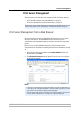
The Status menu displays the status of the System, Printer, Print Jobs, Wireless
settings, TCP/IP, AppleTalk and SNMP. The entries in the Status menu are for
viewing only, they are edited from the Setup menu, explained on page 22.
System Status Print Server Name: Displays the name of the print server. If nothing is
modified, the default name is AXISXXXXXX, where X represent the last six digits
of the print server’s serial number. The serial number can be found on the label
on the underside of the print server.
System Contact: Displays the name of the contact person in charge of the print
server.
System Location: Displays the name of the print server’s physical location.
Example: “Room A, color printer”
System UpTime: Displays the uptime of the print server. When the print server
is powered on, it will start counting.
Firmware Version: Displays the print server’s firmware version. See Upgrading
the Print Server’s Firmware, on page 31 for more information on firmware.
Wireless MAC Address: Displays the Mac Address (Node ID) of the print server.
All print servers have a unique Mac Address, and the serial number for the print
server is based on the Mac Address. See Print Server’s Serial Number, on page 9
for more information.
Wireless Operation Mode: Displays the current wireless operation mode of the
print server.
Printer Status Manufacturer: Displays the manufacturer of the connected printer.
Model: Displays the model of the connected printer.
Supported Printing Language: Displays the printer languages supported by the
connected printer.
Current Status: Displays the connected printer’s status.
Printer Usage: Displays information about Job Count and Printed Pages.
Print Job Status Displays the current print jobs, including information on the Job, User, Elapsed
Time, Protocol, Port, Status and Bytes Printed.